
Getting Started with DrDispatch
Welcome to DrDispatch! This guide walks you through the essential first steps to get your account configured and ready for daily operations. Whether you're running a brokerage, a trucking operation, or both, these steps apply to you.
1. Set Up Your Office Record
Your first step is to create your Main Office record with your company's details. DrDispatch uses this information on billing forms, rate confirmations, and other documents — so it's important to get it right from the start.
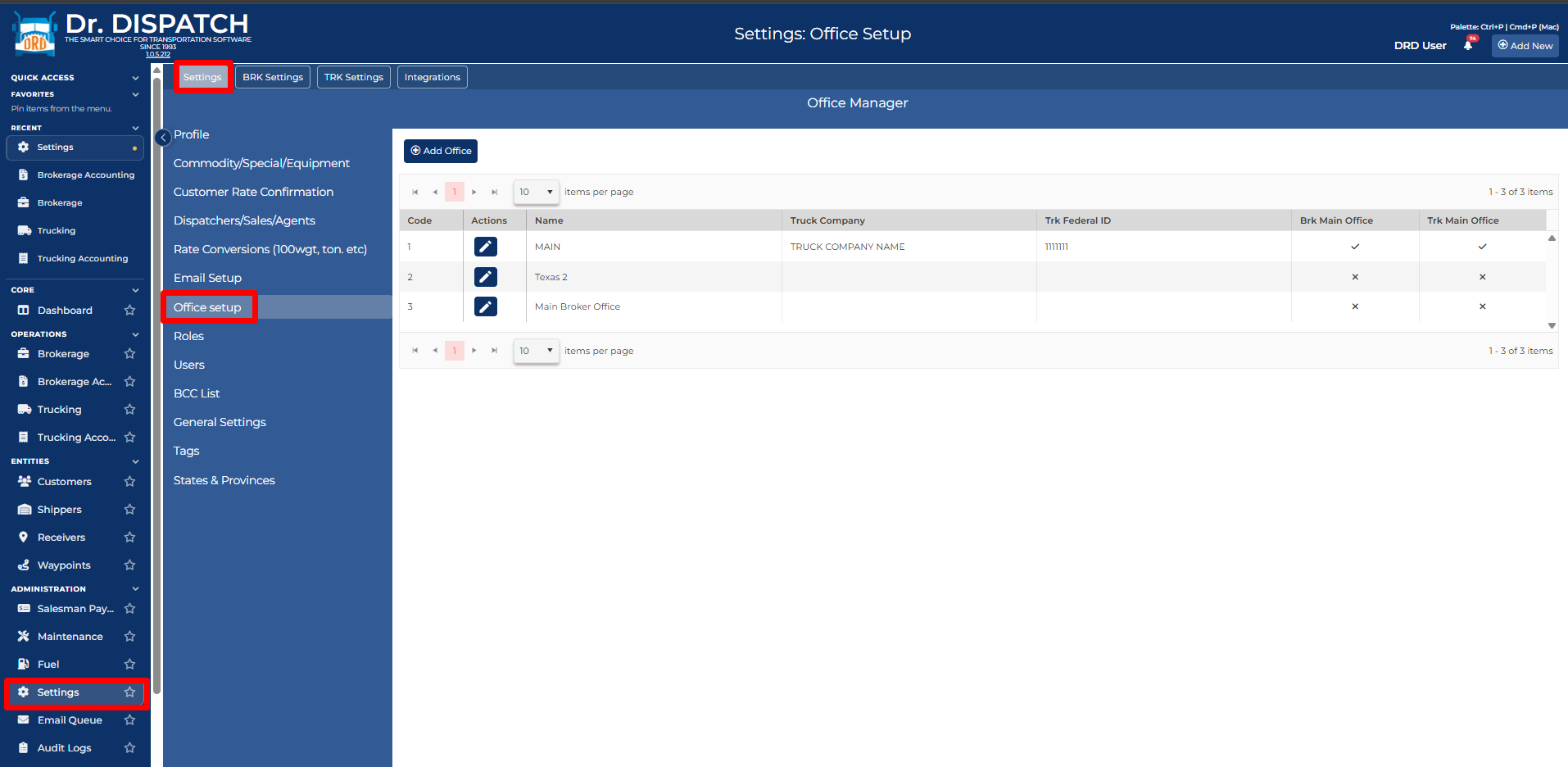
- Navigate to Settings → Settings tab → Office setup (in the left sidebar). This option is only visible to Admin users.
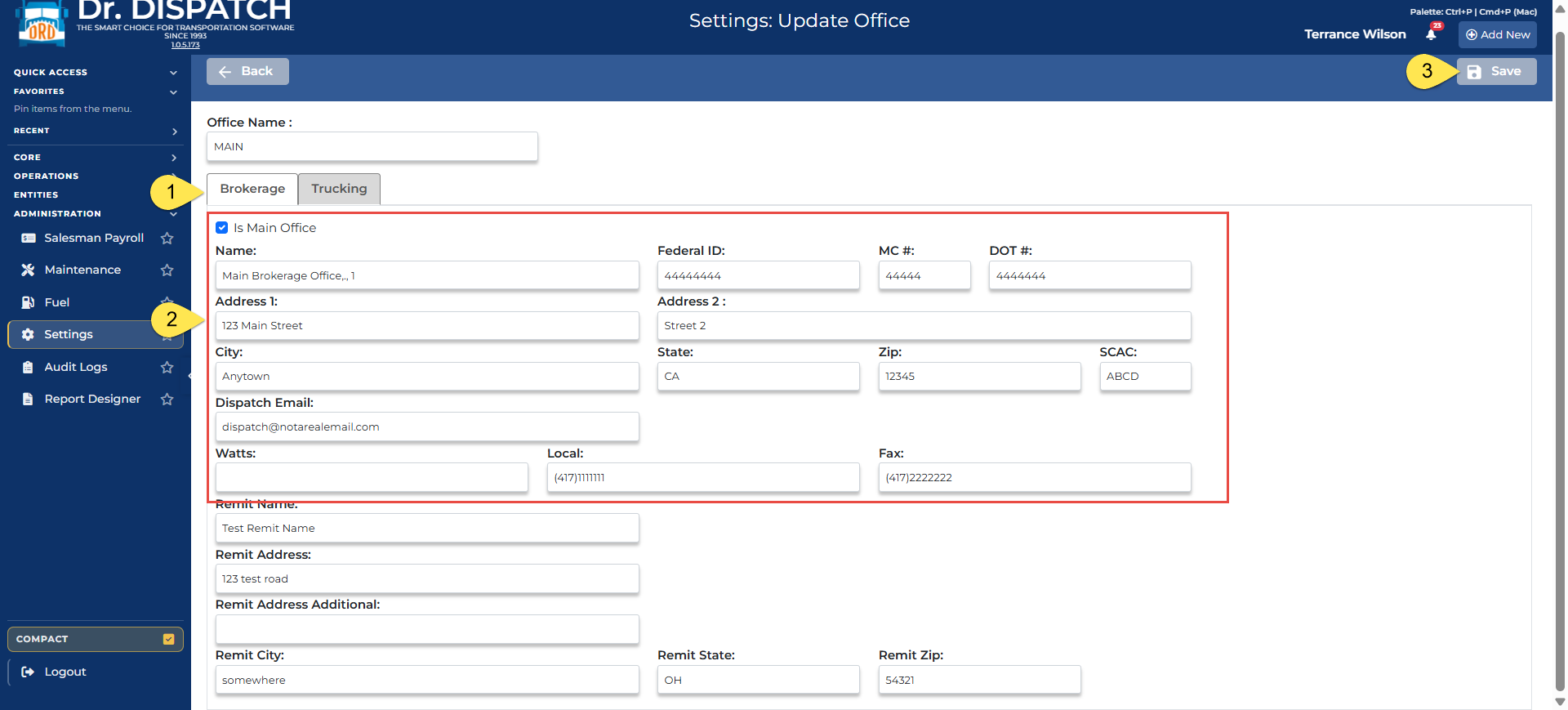
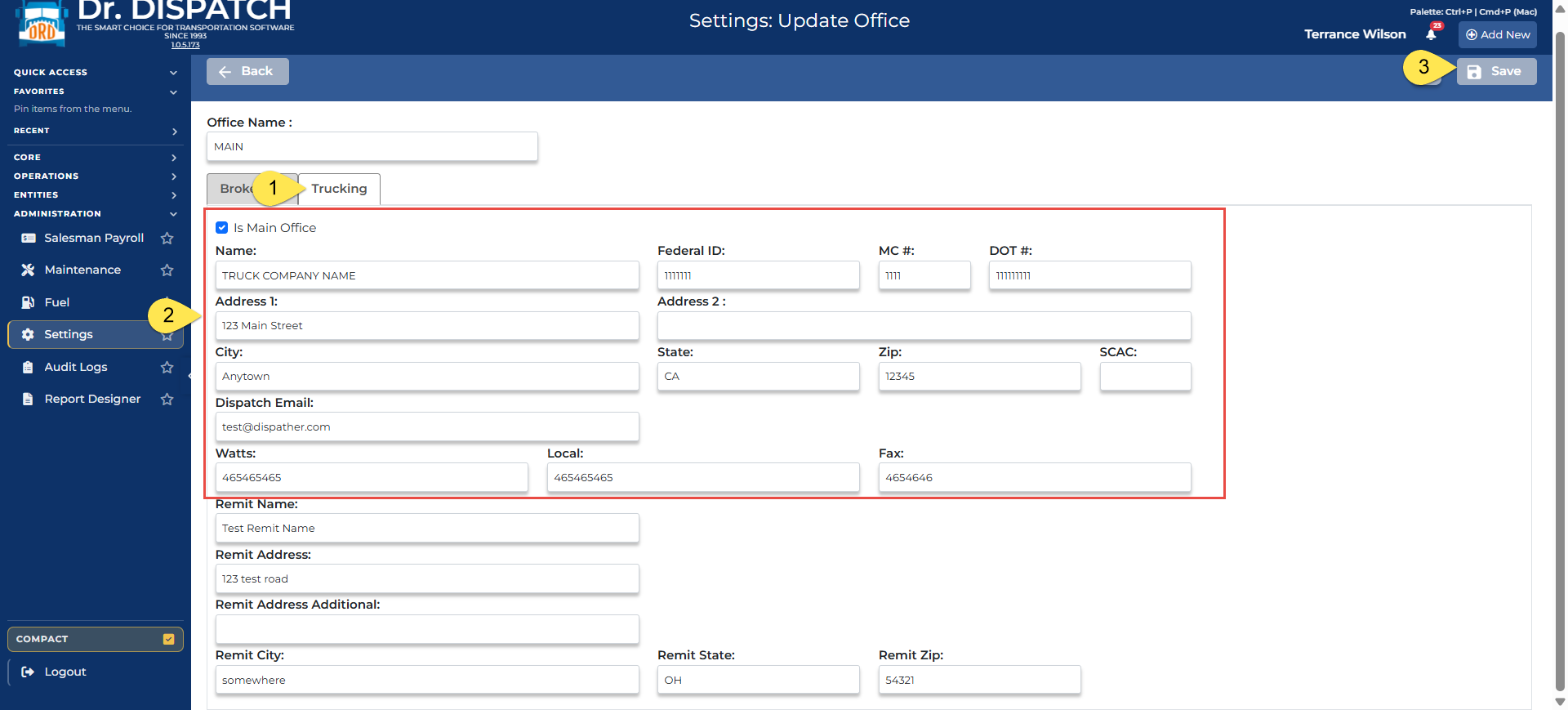
- Click the Pencil icon to edit your Main Office record. Fill in your full company name, address, phone, Federal ID, MC#, DOT#, and any other applicable fields.
- On the office form you'll see a Brokerage (BRK) tab and a Trucking (TRK)tab. These are two tabs on the same office record — not separate offices.
- If you operate as a freight broker, fill in the BRK tab and check "Is Main Office" on that tab.
- If you operate as a carrier / trucking company, fill in the TRK tab and check "Is Main Office" on that tab.
- If you do both, fill in both tabs and check "Is Main Office" on each one.
- If you operate as a freight broker, fill in the BRK tab and check "Is Main Office" on that tab.
- On the office form you'll see a Brokerage (BRK) tab and a Trucking (TRK)tab. These are two tabs on the same office record — not separate offices.
Tip: If you need more complex office structures — for example, multiple offices with different user permissions — contact our support team and we'll help you get that configured.
2. Configure Roles & Security
Every user in your system needs to have Roles assigned. This is a critical step that's easy to overlook, and skipping it can cause unexpected issues — even for Admin users. Setting up roles is a two-step process:
Step 1 — Create your roles:
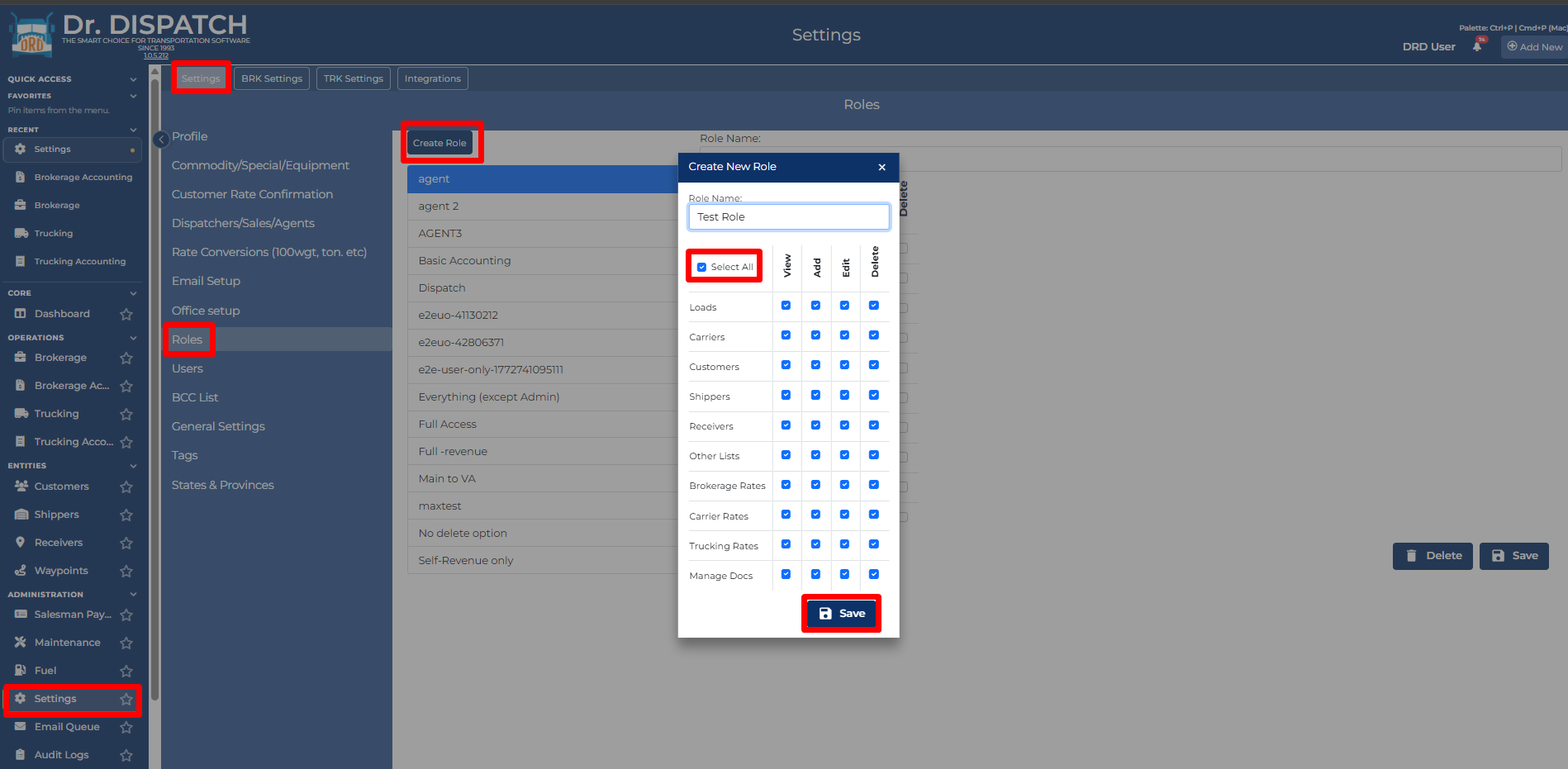
- Go to Settings → Settings tab → Roles (in the left sidebar). This option is only visible to Admin users.
- We recommend creating a "Full Access" role first — click the Select All checkbox to grant all permissions, then save.
- You can create additional, more restricted roles later as needed.
Step 2 — Assign roles to each user:
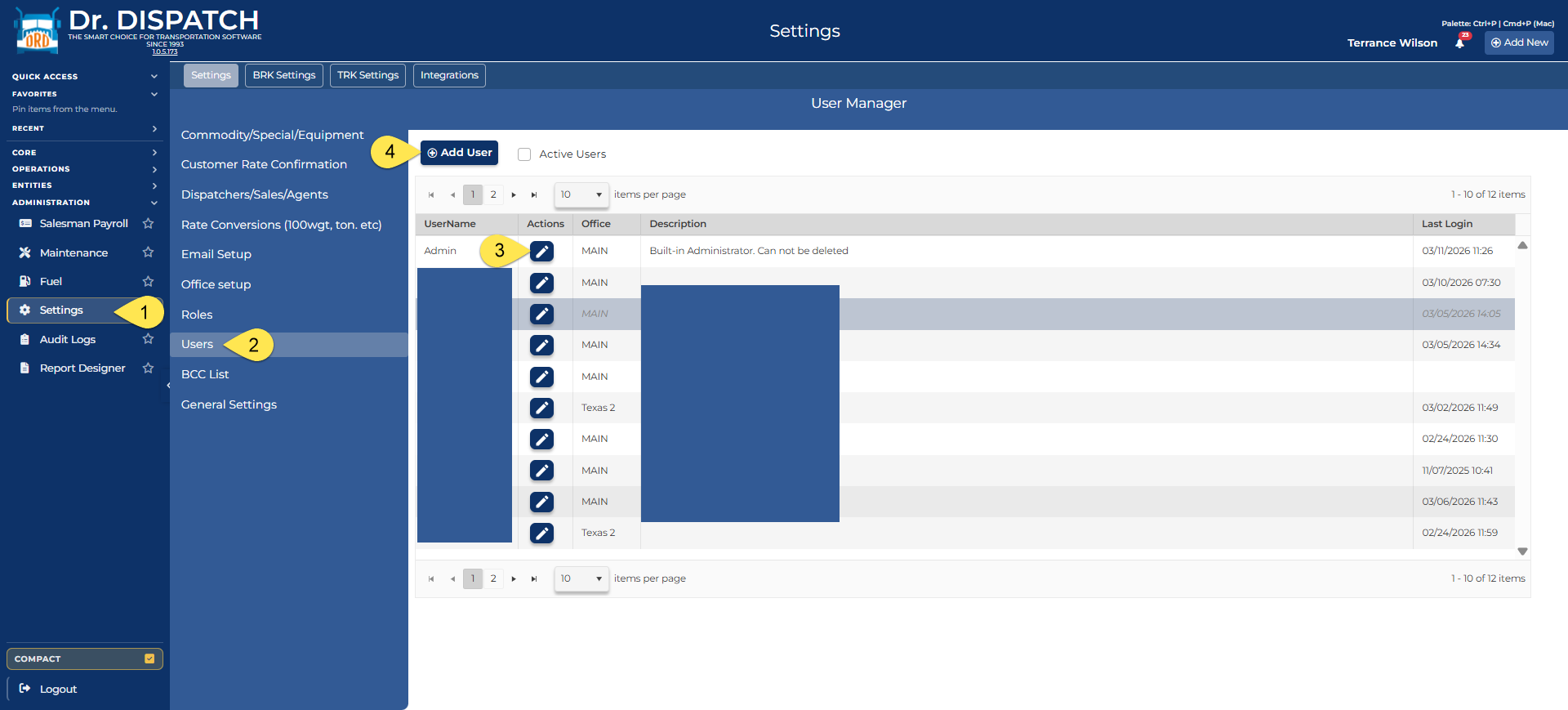
- Go to Settings → Settings tab → Users, then click on the pencil icon next to a user to open their edit page (3), or click the "+Add User" button to create a brand new user (4).
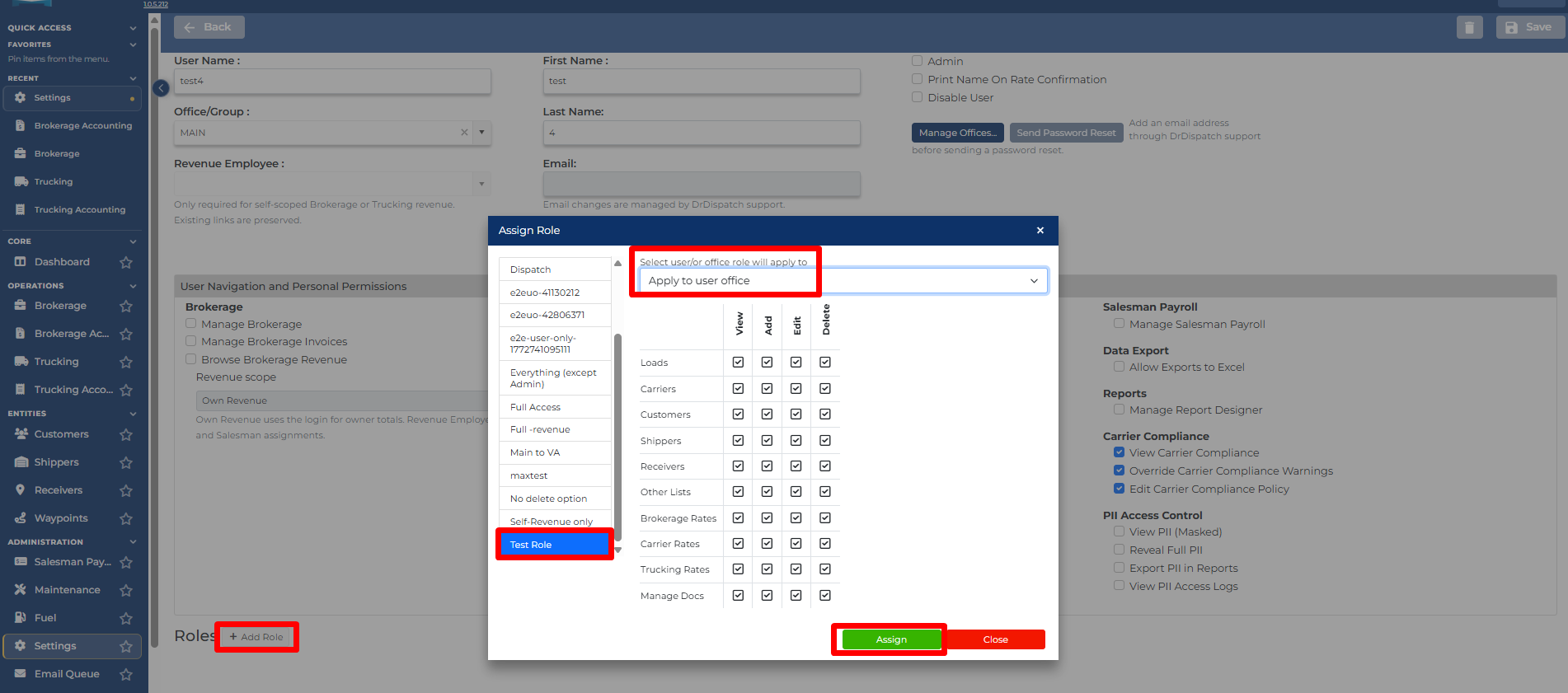
- Under the Roles section, click Add Role, select the role you created, and choose its scope:
- User — the role applies to the user personally.
- Office: [OfficeName]— the role applies to a specific office.
- Repeat for every user in your system.
Why this matters: We've seen cases where missing role assignments cause features to behave unexpectedly, even for users with Admin access. Setting roles upfront avoids these problems entirely. We recommend starting with full permissions for each user and then removing specific permissions as needed, rather than building up from zero.
3. Set Up Your Users
When creating user accounts, there are a couple of important details to get right:
- Navigate to Settings → Settings tab → Users (in the left sidebar) → click the Add User button. This option is only visible to Admin users.
- Email address: The email displayed here for each user is their password recovery email. Without it, they won't be able to use "Forgot Password" if they get locked out. Please note that only DRD Support can enter the Email Address.
- Please reply to your setup ticket with a list of usernames & email addresses to be used for their password recovery so that we can set them up for you.
- Note: password reset links expire after 15 minutes.
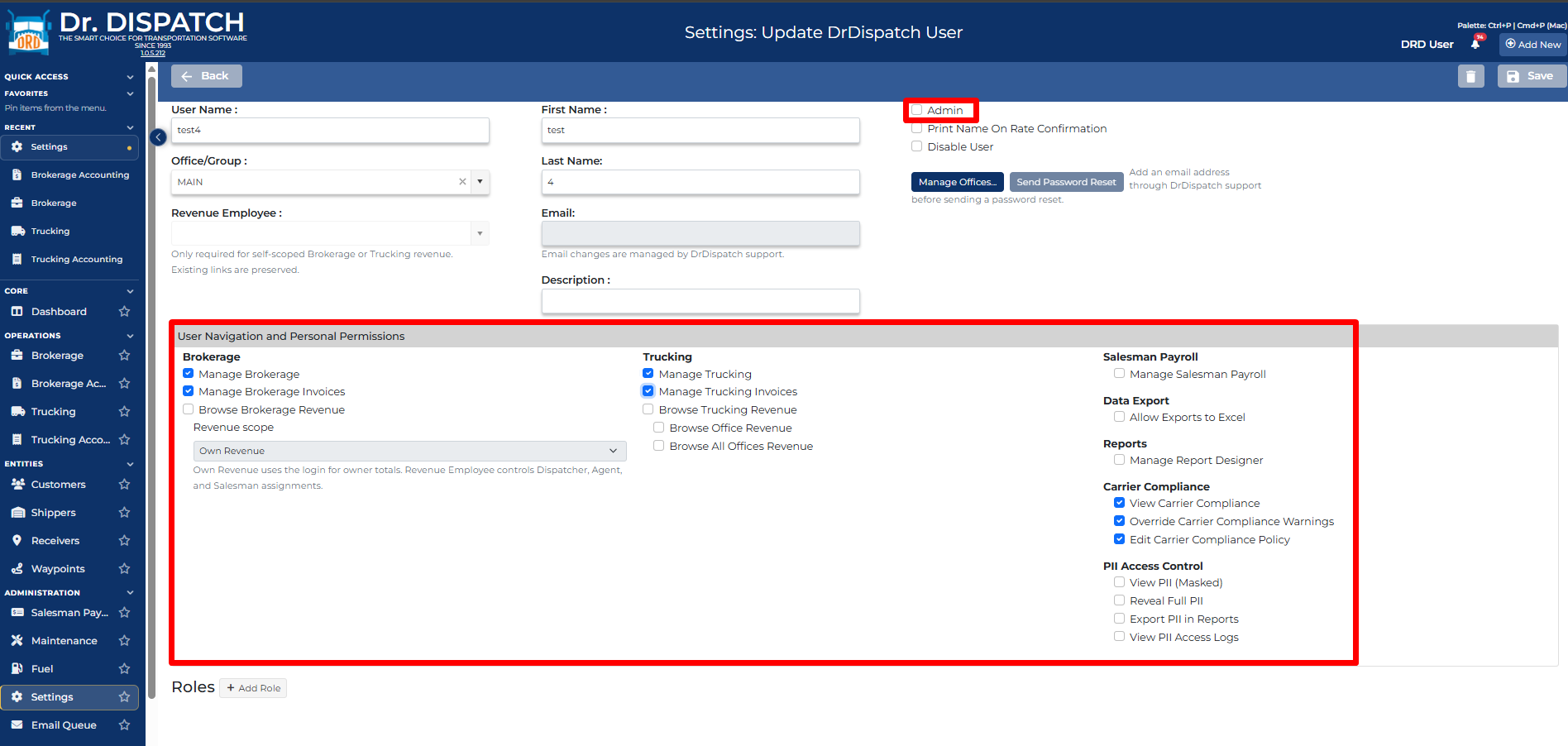
- Admin - check Admin if you want the user to have Full Access
- Or uncheck Admin and manually select the Permission for that user
- Press Save
First Login: When a user logs in for the first time and resets their password, they should confirm that their email address is correct in their profile. This ensures password recovery will work when they need it.
4. Configure Email
DrDispatch can send emails (rate confirmations, invoices, etc.) directly from the system on your behalf. To enable this, each user who sends emails from DrDispatch needs to configure their own email settings.
- Go to Settings → Settings tab → Email Setup (in the left sidebar).
- Choose your email method. The page offers four options:
- SMTP (less common) — enter your server address, port, username, password, and SSL/TLS setting.
- Office 365 via DrDispatch — uses OAuth-based authentication.
- Google API — use Gmail OAuth-based authentication
- After entering your settings, click the Send Test Email button to verify everything is working.
SMTP Gmail Users: If you use Google/Gmail and run into issues during the setup, then alternatively you can select the SMTP option and use an App Password instead of your regular Gmail password. You can create an App Password in your Google Account at myaccount.google.com → Security → App Passwords. Your SMTP server will be
smtp.gmail.com, port587, with SSL/TLS enabled.
5. Use Complete, Valid Addresses
DrDispatch calculates mileage automatically, but it needs complete and accurate address data to do so. When entering shipper, consignee, or any location data:
- Always include the full street address, city, state, and ZIP code.
- Partial addresses (e.g., just a city and state) can result in inaccurate or missing mileage calculations.
- This applies to your Office record, customer/carrier records, and load origins/destinations.
- If an address can't be validated, it will appear highlighted in red with suggested corrections.
6. Trucking Settings (Carrier / Trucking Users)
If you use DrDispatch for trucking operations, there's one setting you'll want to configure right away:
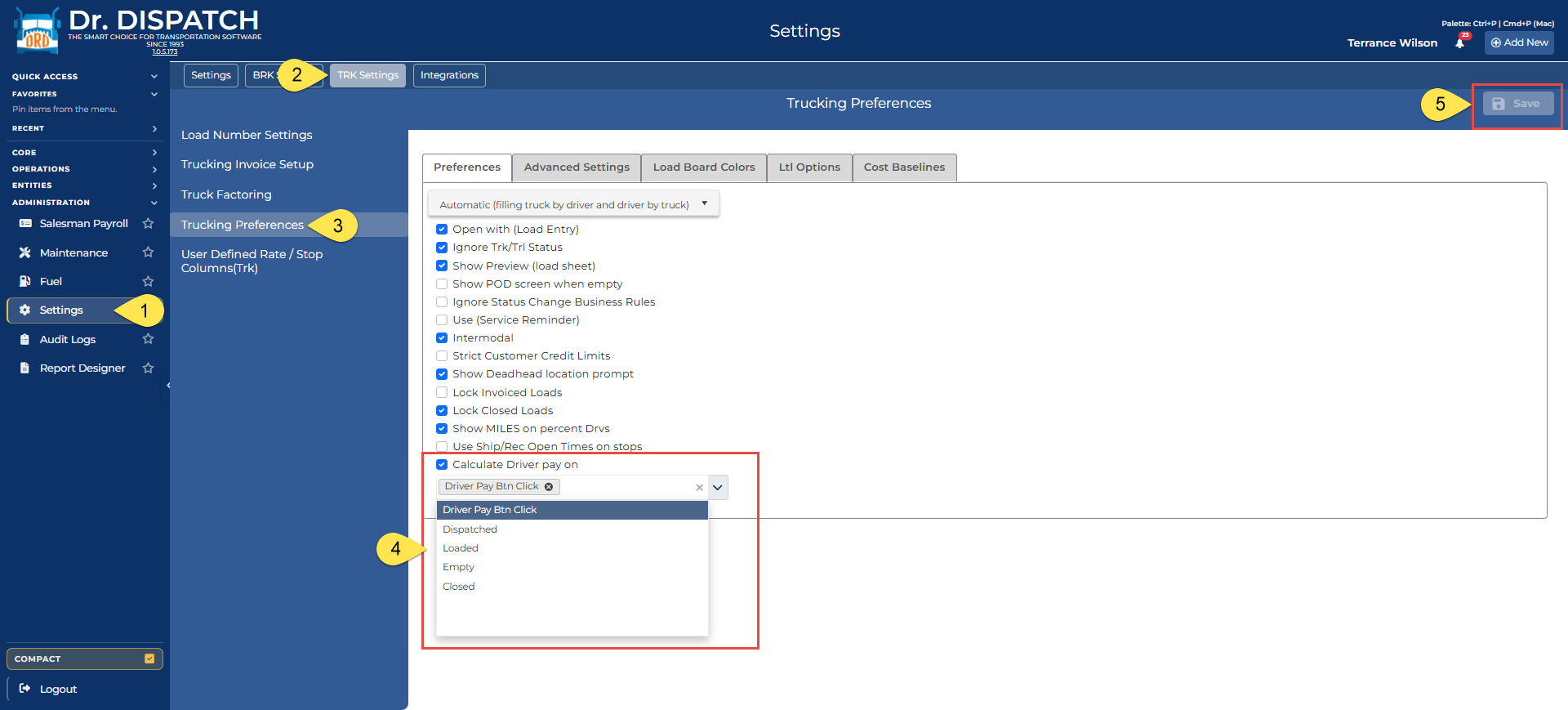
- Navigate to Settings → TRK Settings tab → Trucking Preferences (in the left sidebar).
- On the Preferences tab, enable the "Calculate Driver Pay on" checkbox, then select which load statuses should trigger the driver pay calculation from the dropdown. The available options are:
- Driver Pay Btn Click — manual trigger only
- Dispatched — when the load is dispatched
- Loaded — when the truck is loaded
- Empty — when the truck is emptied at delivery
- Closed — when the load is closed out
Why this matters: If this isn't set correctly, your driver pay calculations won't match your actual pay structure, which will cause problems downstream in settlements and reporting.
Need Help?
If you run into any issues during setup, our support team is here to help:
- Email: support@drdispatch.com
- Freshdesk: https://drdispatch.freshdesk.com/support/home
- Phone:
- For Tech Support (888) 689-7188 ext. 2
- For Billing Questions (888) 689-7188 ext. 1
We want to make sure your first experience with DrDispatch is smooth. Don't hesitate to reach out — no question is too small.