
Quick Overview
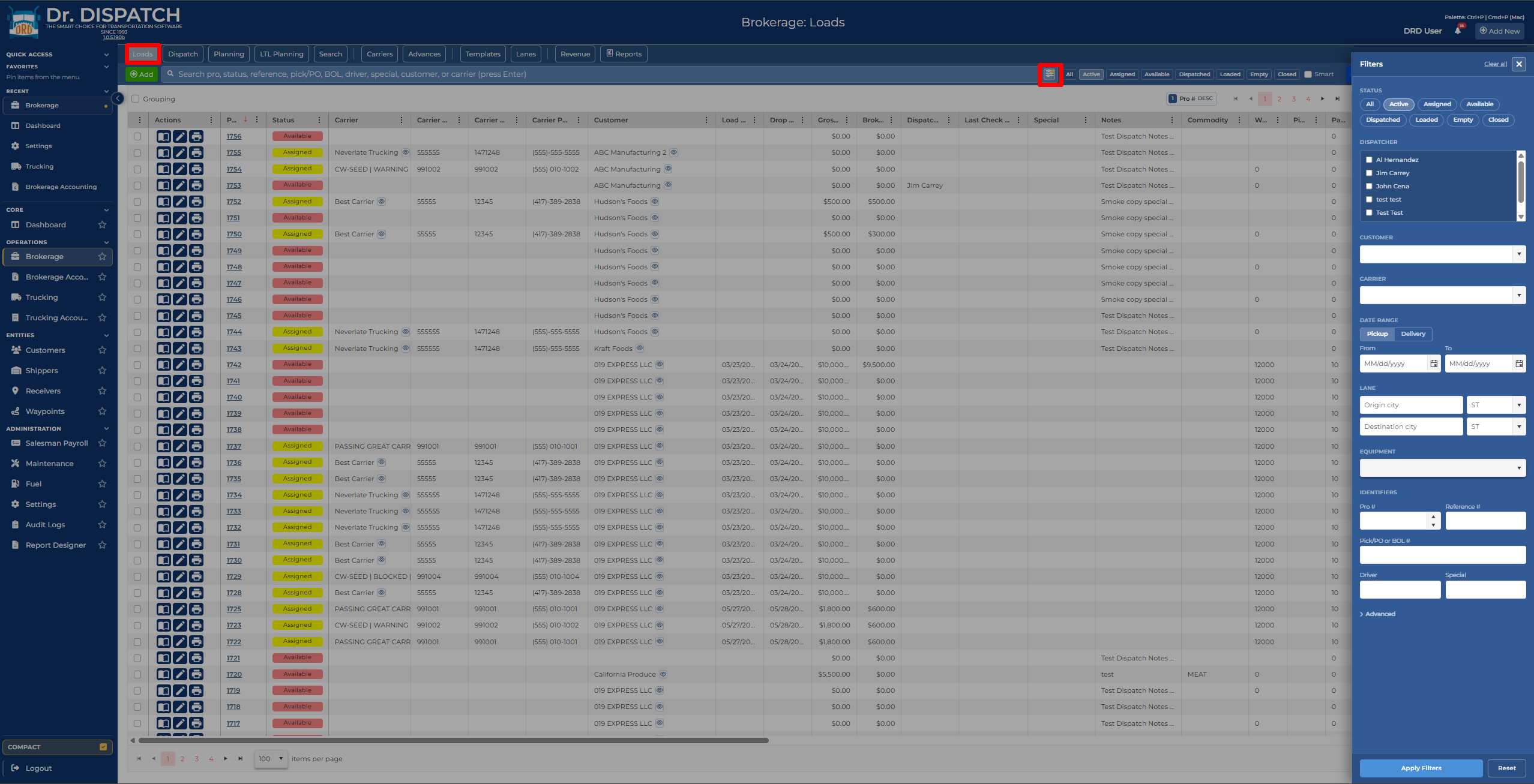
In Brokerage, most day-to-day work starts in Brokerage > Loads or Brokerage > Dispatch.
- Use Loads when you want a board view with filters, status buttons, bulk status updates, and quick access to existing loads.
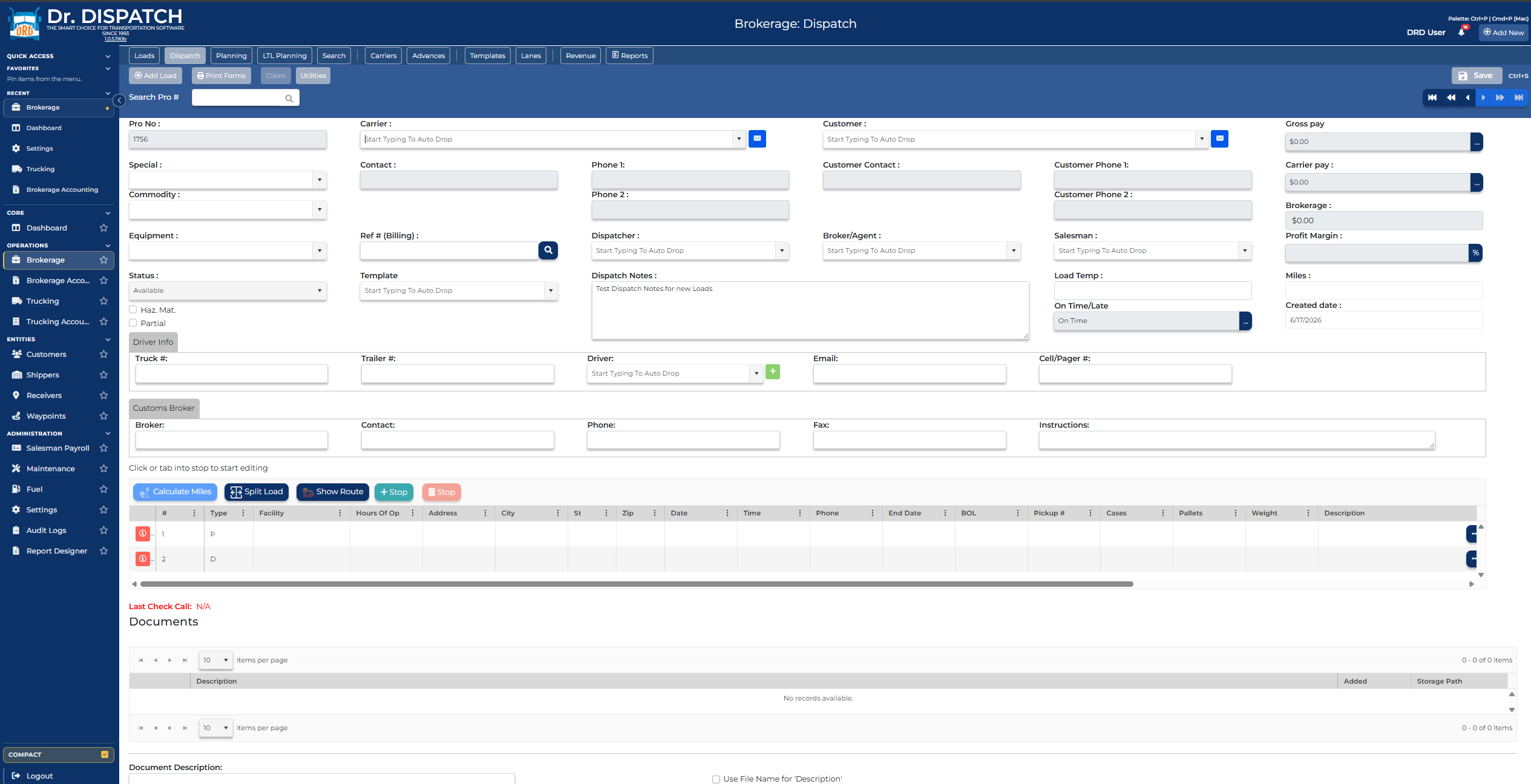
- Use Dispatch when you want to work through loads one at a time, add a new load, save changes, and print forms.
- Use Invoicing, A/R - Accounts Receivable, and A/P - Accounts Payable after the load is ready for accounting.
Before You Start
Make sure these records exist or are ready to create:
- Customer
- Carrier
- Shipper and receiver, or pickup and delivery location details
- Dispatcher or salesperson, if your office tracks them
- Customer rate and carrier pay details
Your company settings may require certain fields before a load can be dispatched or invoiced. Common required fields include customer reference number, QuickBooks class, customer, gross pay, carrier, and pickup or delivery information.
Create a Brokerage Load
- Go to Brokerage > Dispatch or Brokerage > Loads.
- Click Add Load or Add.
- Enter the customer.
- Enter the pickup and delivery stops. Include dates, city, state, and full addresses when available.
- Enter reference details such as the customer reference, BOL, PO, pickup number, or other stop reference numbers.
- Enter the customer rate or gross pay.
- Assign the carrier.
- Enter the carrier pay.
- Add equipment, trailer, driver/contact information, dispatcher, salesperson, notes, and documents as needed.
- Click Save.
What Happens When You Assign a Carrier
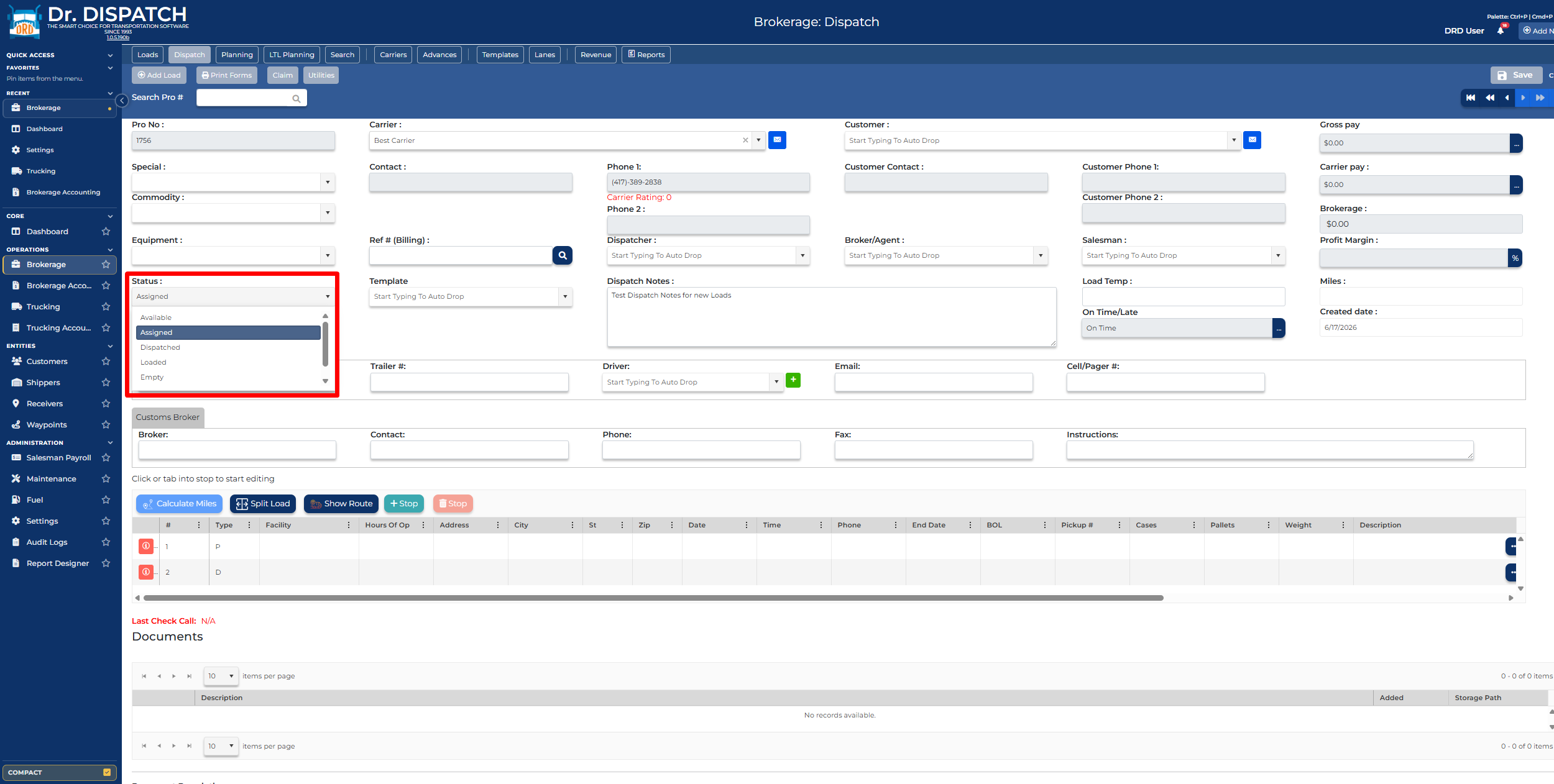
A new brokerage load starts as Available. When you assign a carrier, the system can move the load to Assigned. That means the load is no longer just available on the board and has a carrier attached.
If you remove the carrier, the load may return to Available depending on the current load state and settings.
Brokerage Load Statuses
The normal brokerage status flow is:
Available -> Assigned -> Dispatched -> Loaded -> Empty -> Closed
Use the status field on the load form, the status controls on the load board, or the load form utility/status actions to move the load forward.
| Status | Meaning |
|---|---|
| Available | The load exists but is not assigned to a carrier. |
| Assigned | A carrier is assigned, but the load is not dispatched yet. |
| Dispatched | The carrier has been dispatched on the load. |
| Loaded | The freight has been picked up or loaded. |
| Empty | The freight has been delivered and the carrier is empty. |
| Closed | The operational side of the load is complete. Closed loads may be hidden from many day-to-day filters. |
Status Rules and Common Blockers
If the system will not let you change a status, review the message on screen. These are the most common reasons:
- To mark a load Assigned, a carrier must be assigned.
- To mark a load Dispatched, the load usually must already be Assigned.
- Dispatch may require a customer reference number, QuickBooks class, pickup and delivery location details, customer, and gross pay depending on your company settings.
- Loaded normally follows Dispatched.
- Empty normally follows Dispatched or Loaded.
- Closed normally follows Empty.
If your company has enabled a setting to ignore status change business rules, some of these checks may be relaxed for authorized users.
Work From the Brokerage Load Board
Go to Brokerage > Loads for a board-style view of loads.
From this screen, you can:
- Filter by status, dispatcher, customer, carrier, origin, destination, Pro #, reference, BOL/PO, and dates.
- Click a Pro # to open the load.
- Use the status column to change a single load status.
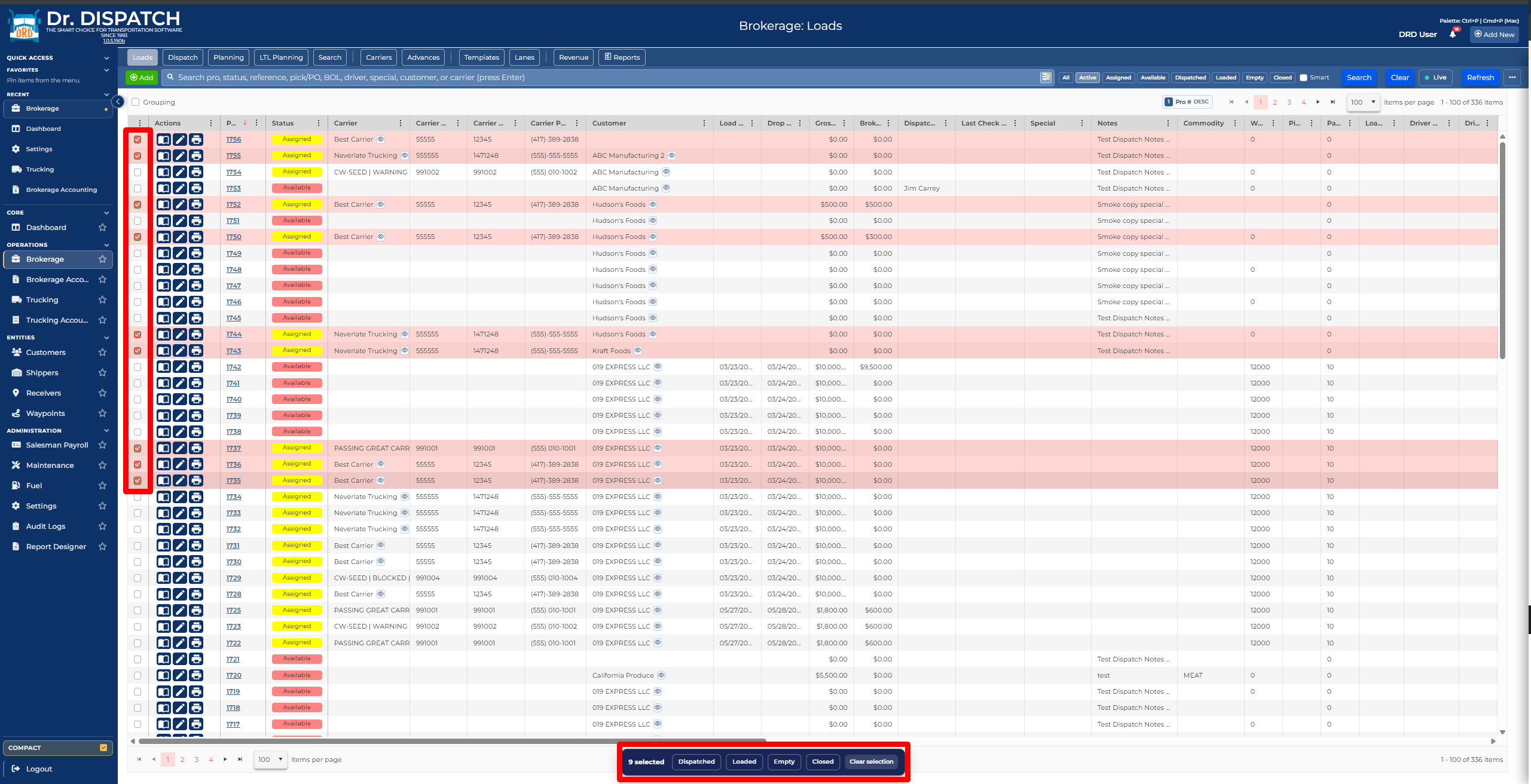
- Select multiple loads and use bulk status actions for Dispatched, Loaded, Empty, or Closed.
- Print forms from the grid.
- Copy loads or create repeat orders when you need similar loads.
- Use Bulk Orders when your company is entering multiple loads at once.
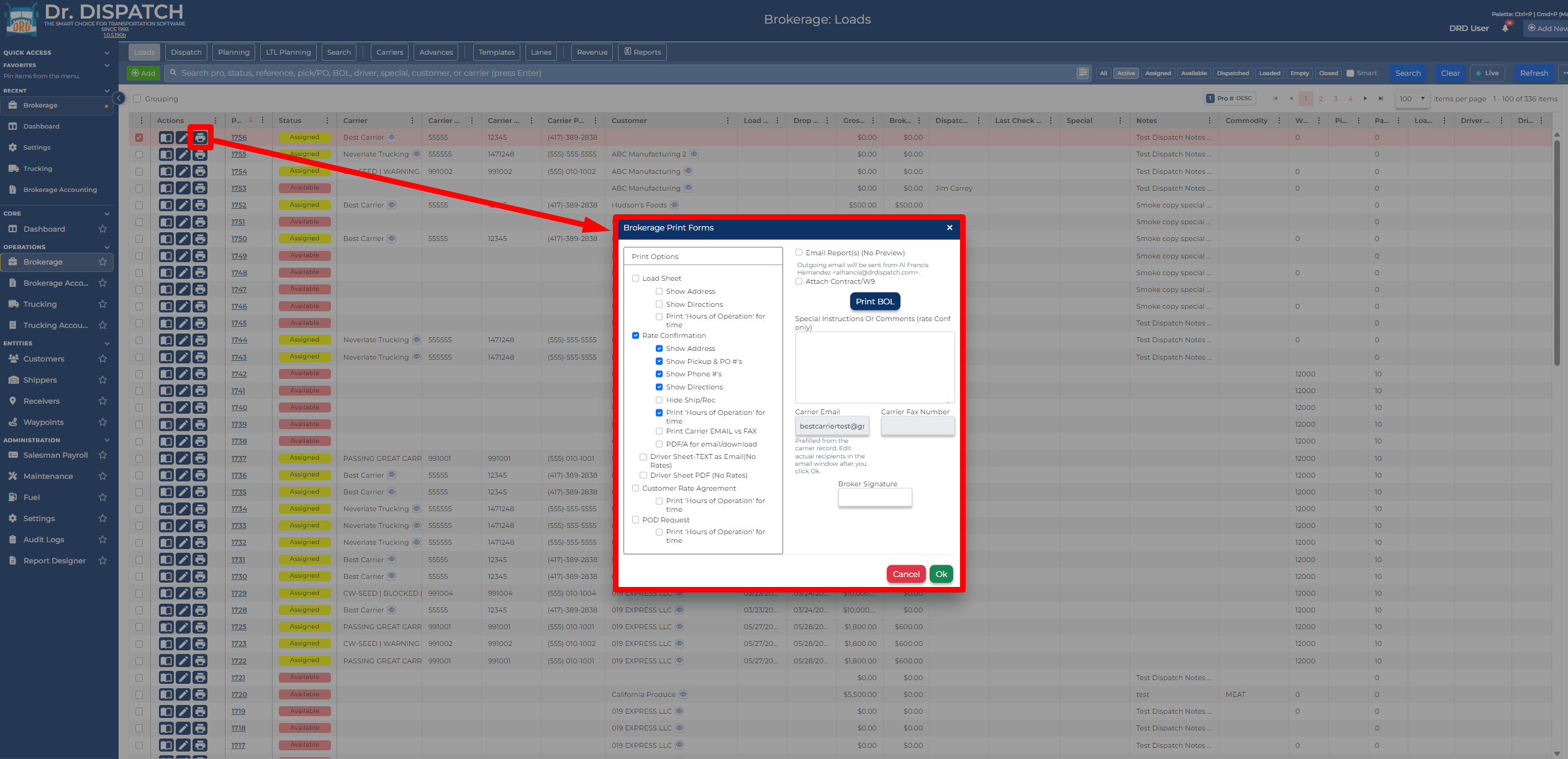
Print or Email Brokerage Forms
From the load form or the load board, use Print Forms to generate documents such as:
- Rate confirmation
- Bill of lading
- Load sheet
- Driver sheet, if used
The load form also includes email options for customer and carrier communication when email is configured.
Invoice Brokerage Loads
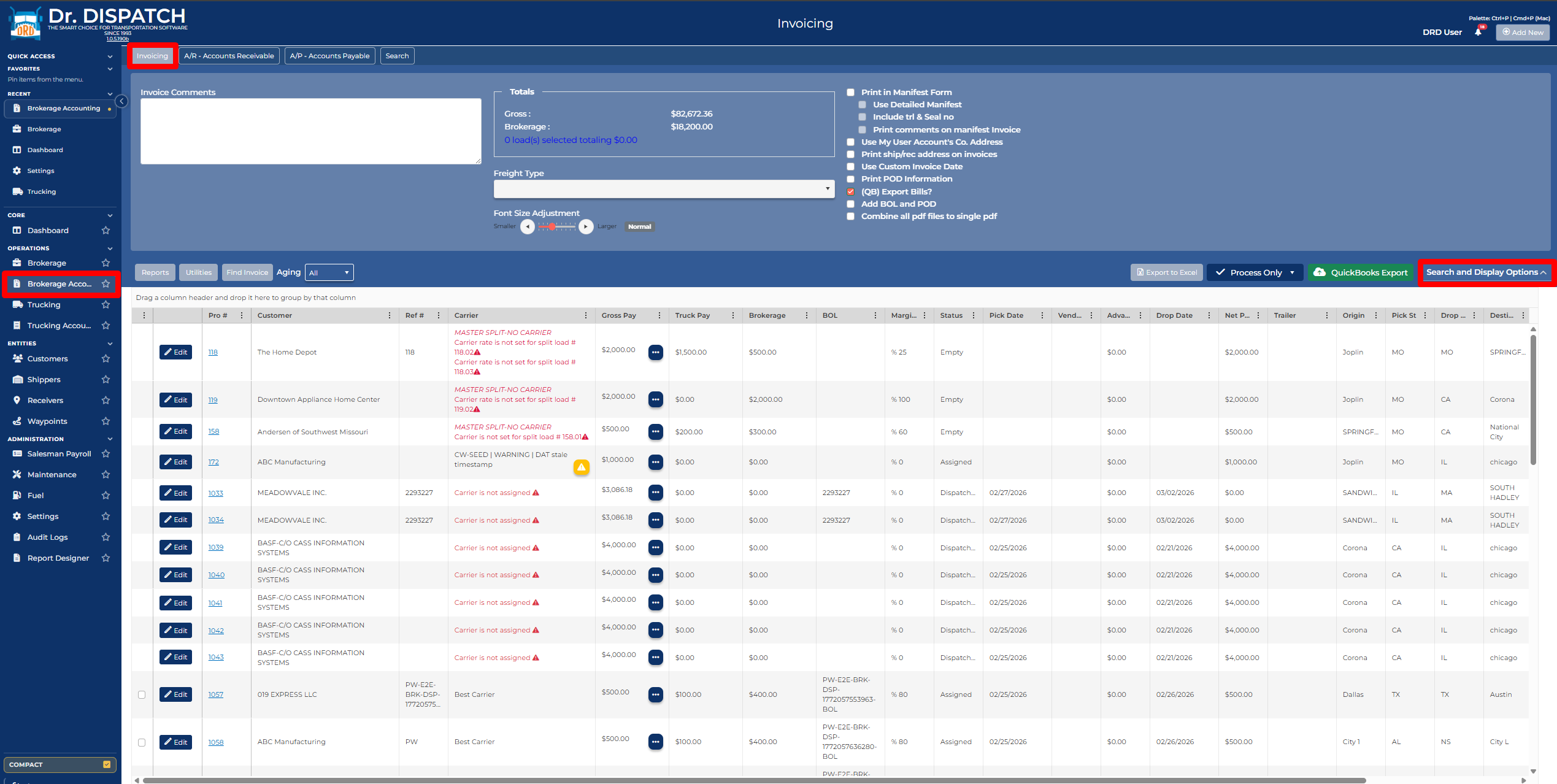
When the load is ready to bill the customer, go to Invoicing from the Brokerage accounting menu.
- Go to Invoicing.
- Review the grid for loads ready to invoice.
- Fix any warning icons before processing. Warnings often point to missing billing addresses, carrier details, or rate issues.
- Select the load or loads to invoice.
- Choose invoice options such as invoice comments, freight type, manifest options, POD information, custom invoice date, or combined PDF.
- Click Process Invoices.
- If QuickBooks is active, use QuickBooks Export when you are ready to send invoice data to QuickBooks.
- Some companies only allow closed loads to be invoiced. If a load does not appear, confirm the load status and company invoicing preferences.
- A user needs the correct change/edit permission to invoice a load.
- The invoice date and invoiced-by information will show on the load after invoicing.
Post Customer Payments in A/R
After customers pay invoices, go to A/R - Accounts Receivable.
- Go to A/R - Accounts Receivable.
- Find the load by Pro # or use the grid filters.
- Check the load or loads you want to apply payment to.
- Enter the payment amount and check number if needed.
- Choose the POST Date.
- If QuickBooks is active and your workflow uses it, select Post To QuickBooks.
- Click Post Payment.
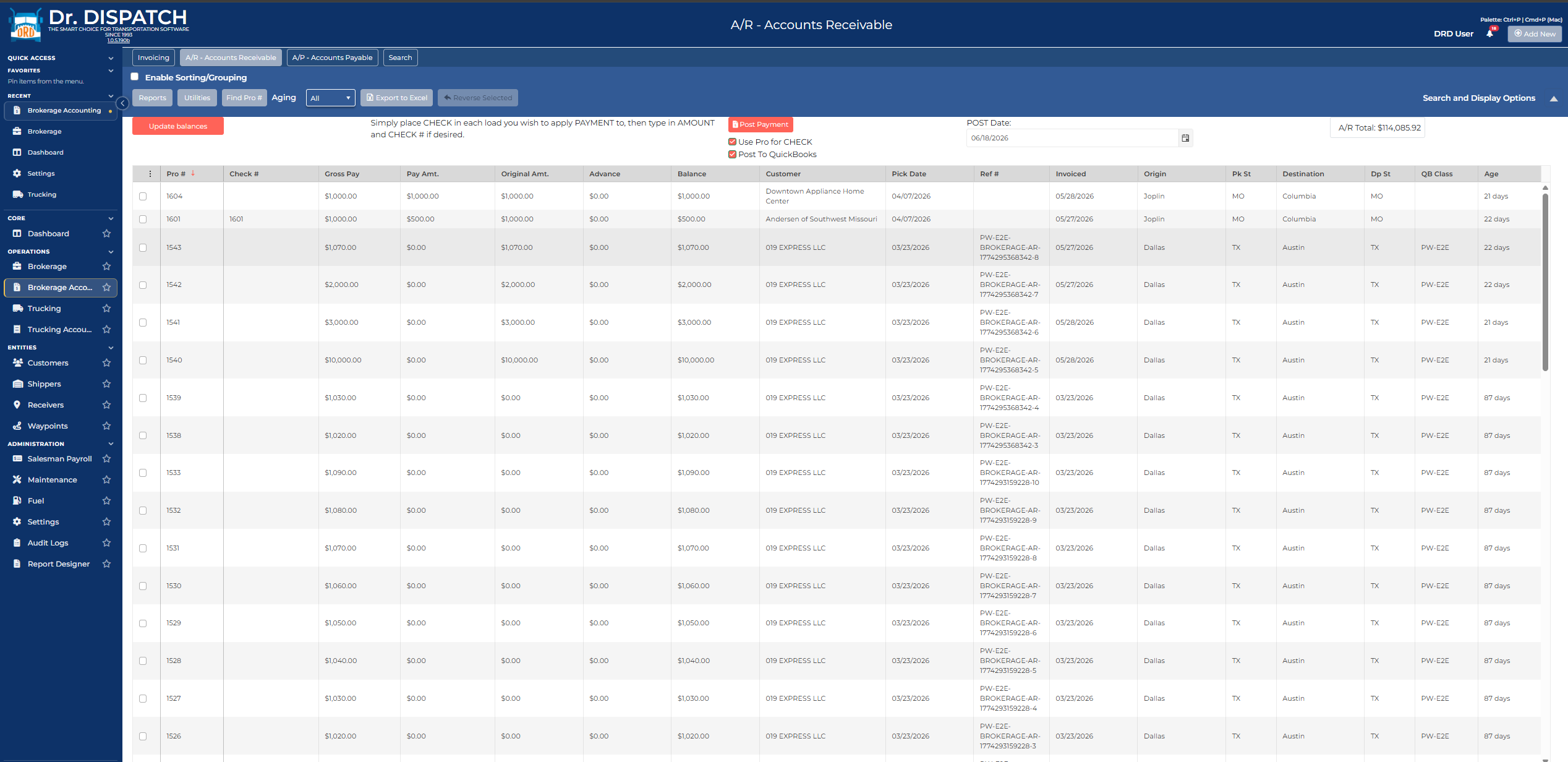
If QuickBooks paid-status tools are enabled, you may also see buttons to Update paid status or Update balances. Use those when you need DrDispatch to refresh payment or balance information from QuickBooks.
Pay Carriers in A/P
Brokerage also includes A/P - Accounts Payable for carrier payments.
- Go to A/P - Accounts Payable.
- Select a carrier, or use Show All if you need to view all payable loads.
- Review the payable loads and totals.
- Enter or confirm carrier invoice details such as carrier invoice number and invoice date.
- Check the loads you want to pay.
- Process the payment according to your company workflow.
- If QuickBooks is active, use the available QuickBooks options to export bills or mark bills paid.
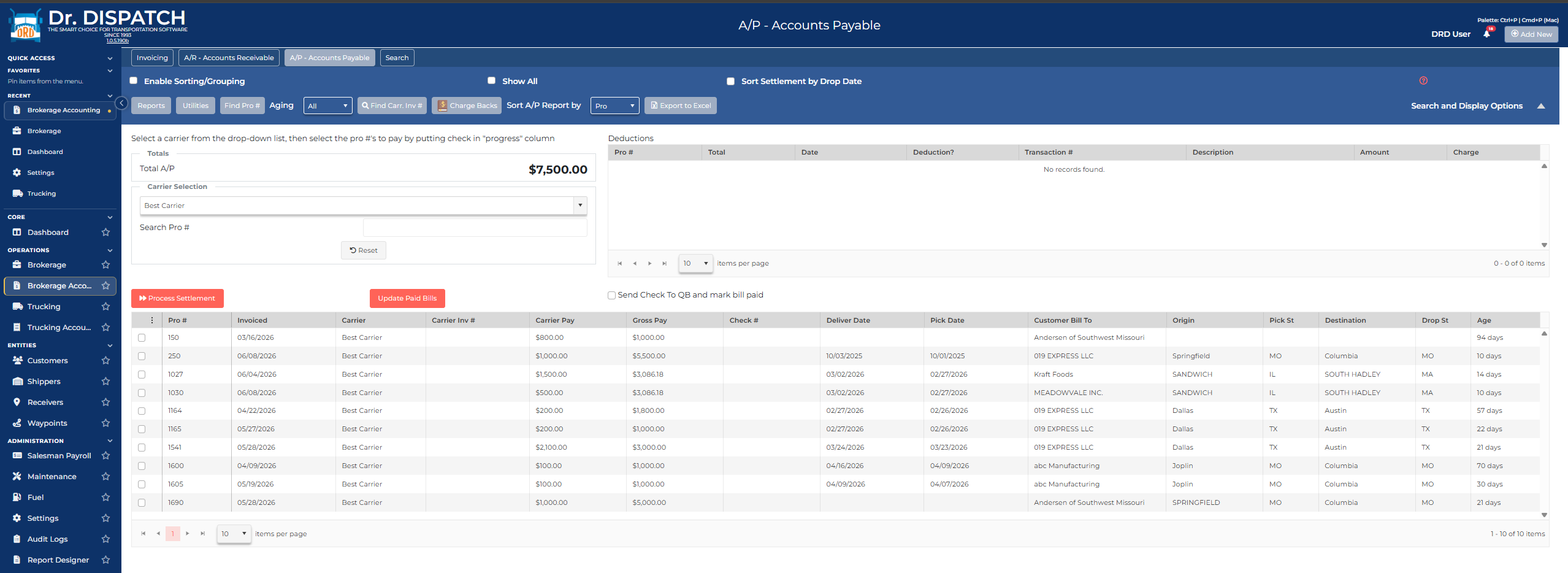
Use Update Paid Bills when your workflow checks QuickBooks for paid carrier bills. If you use carrier advances, the screen may prompt you to include carrier advances in QuickBooks.
Find Past Invoices and Payments
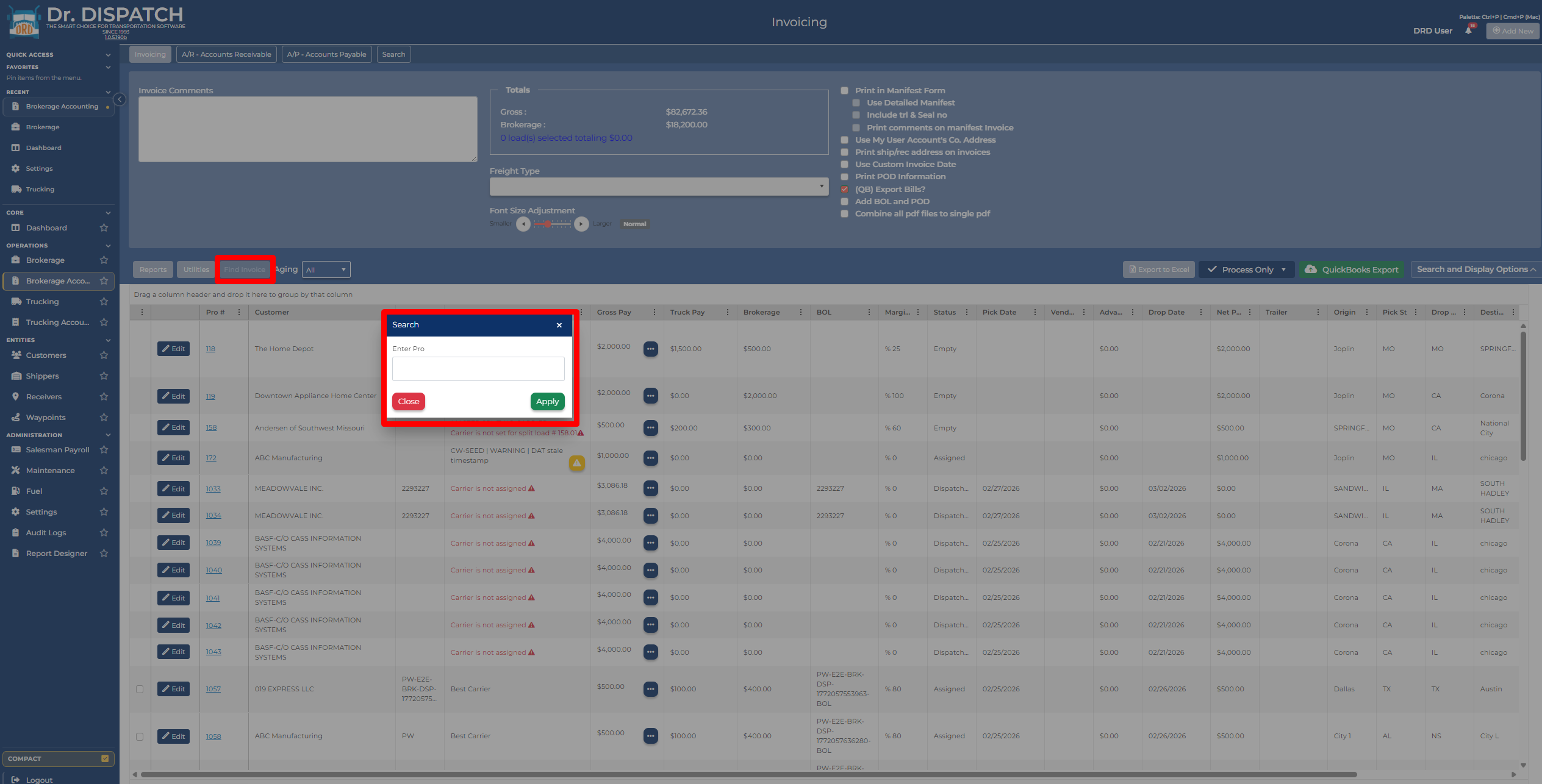
Use Invoicing > Search to look up load accounting history, including invoice dates, customer payment dates, carrier invoice dates, and carrier paid dates.
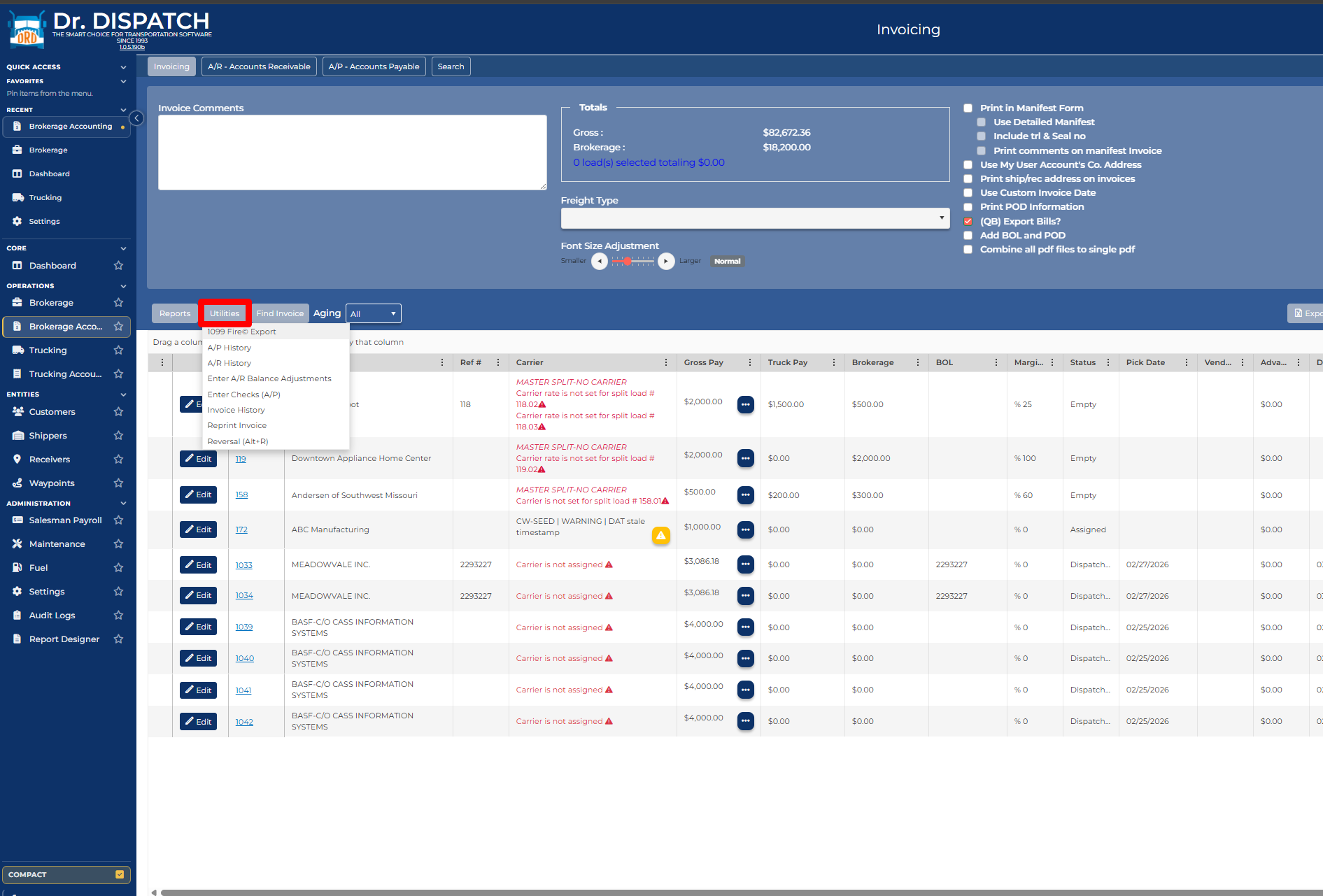
Utilities
Use Utilities if you want to see the history, reprint invoice or reverse an invoice
- 1099 Fire Export
- A/P History
- A/R History
- Enter A/R Balance Adjustments
- Enter Checks (A/P)
- Invoice History
- Reprint Invoice
- Reversal (Alt +R)
Common Questions
Why does my load not show up in Invoicing?
Check the load status, customer rate, gross pay, customer, billing address, and company setting for whether only closed loads can be invoiced.
Why can I not dispatch the load?
The load usually needs to be Assigned first. It may also need a customer, carrier, gross pay, customer reference number, QuickBooks class, and valid pickup/drop information depending on your settings.
Why is a closed load missing from my normal load filters?
Closed loads are considered operationally complete and may not appear under most active load filters. Use search or change filters when you need to find closed loads.
Can I process several loads at once?
Yes. On the load board you can select multiple loads for bulk status updates. In invoicing and accounting screens, you can select multiple loads for invoice processing or payment posting.