
Quick Overview
DrDispatch does not send every load change to QuickBooks immediately. Most accounting workflows work in two steps:
- The accounting action in DrDispatch creates one or more QuickBooks export rows.
- The QuickBooks Export window sends those rows to QuickBooks Online.
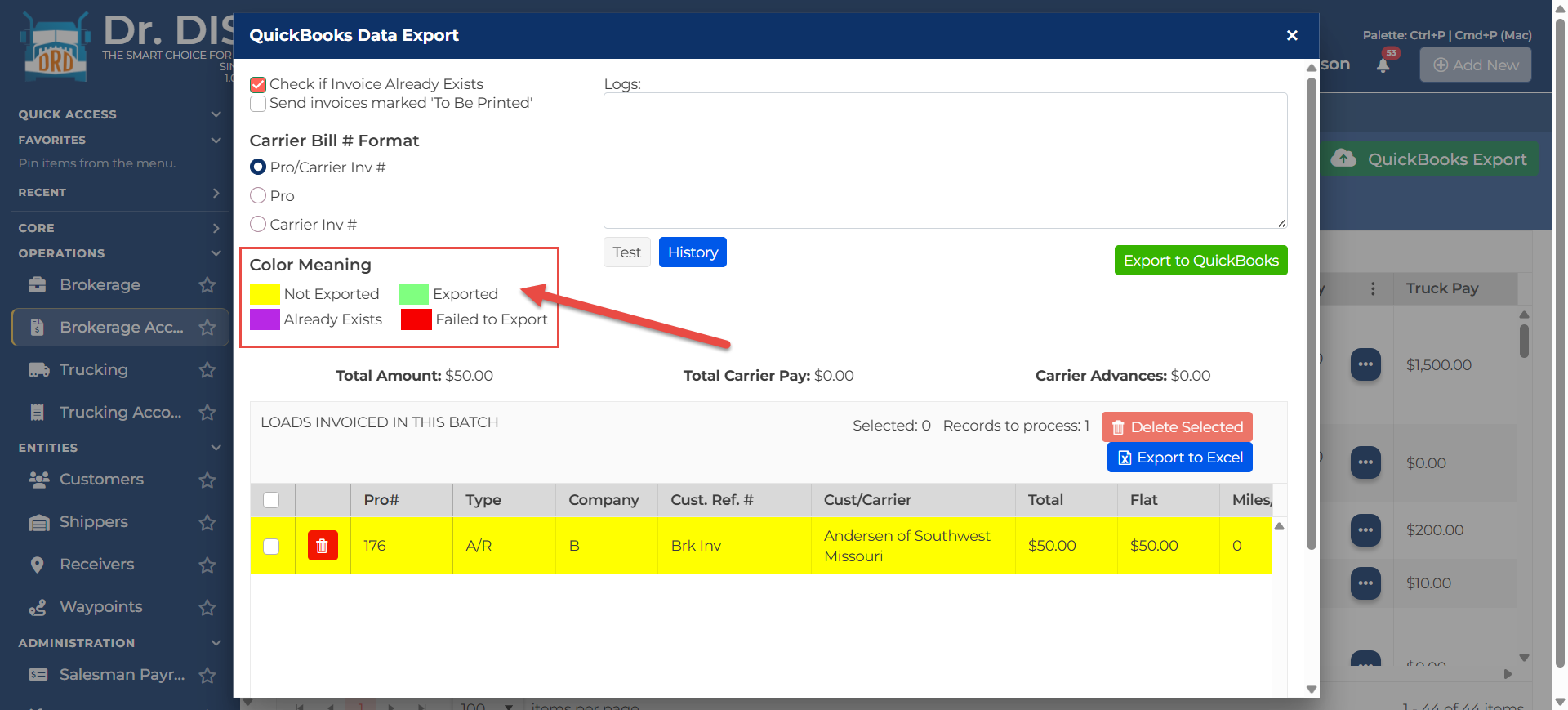
The export window shows whether each row is Not Exported, Exported, Already Exists, or Failed to Export.
What DrDispatch Sends to QBO
| DrDispatch Area | QBO Result |
|---|---|
| Brokerage Invoicing | Customer invoice export row, shown as A/R. |
| Brokerage carrier bill export | Carrier/vendor bill export row, shown as A/P. |
| Brokerage A/R payment posting | Customer payment in QBO. |
| Brokerage A/P carrier payment | Carrier bill payment/check in QBO. |
| Brokerage Carrier Advances | Carrier advance export rows, shown as Car Adv. |
| Trucking Invoicing | Customer invoice export row, shown as A/R. |
| Trucking A/R payment posting | Customer payment in QBO. |
| Trucking Payroll settlements | Driver/fleet owner settlement export as a QBO check or bill, depending on setup. |
QBO customer, vendor, account, item, term, class, and custom-field behavior depends on Settings > QuickBooks Settings.
Brokerage Invoicing and QBO
When QuickBooks Online is active, processing Brokerage invoices can create QBO export rows.
- Go to Brokerage Accounting > Invoicing.
- Select the load or loads to invoice.
- Choose invoice options.
- Click Process Invoices.
- If QuickBooks is active, the QuickBooks export window opens after invoice processing.
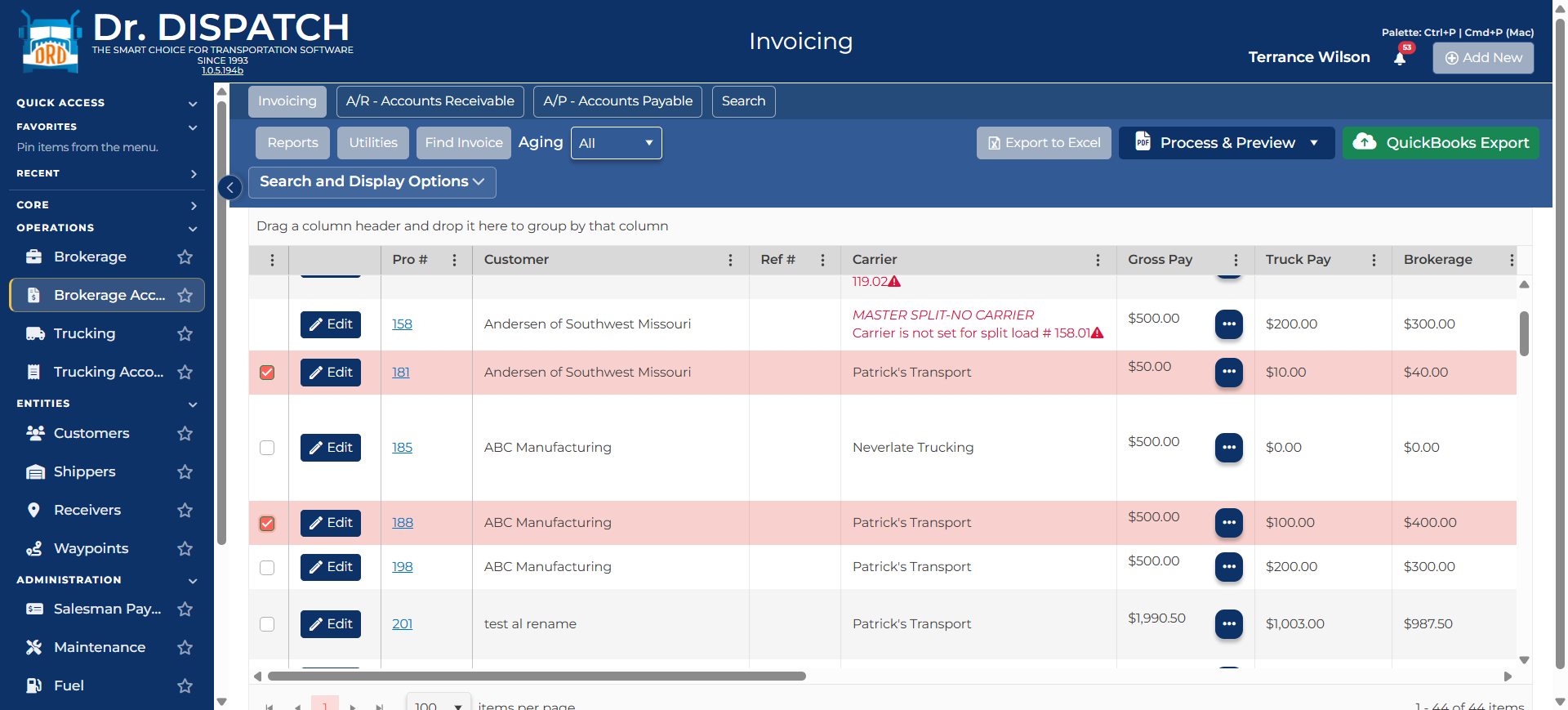
Brokerage invoice processing can create:
- A/R rows for customer invoices.
- A/P rows for carrier bills, when carrier bill export is enabled for the invoice run.
- Car Adv rows for selected carrier advances.
The A/R invoice export uses customer invoice line item mappings from QuickBooks Settings. Carrier bill export uses Brokerage expense account mappings.
Carrier Advances During Brokerage Invoicing
If a Brokerage invoice is processed in a workflow that supports carrier advances, DrDispatch checks for unprocessed carrier advances on the selected loads.
When advances are found, DrDispatch prompts you to choose which loads should process advances this time. Selected advances are queued for QuickBooks export and marked as deducted in DrDispatch.
Screenshot placeholder: Brokerage invoice carrier advance prompt showing loads with unprocessed carrier advances and Proceed button
Carrier advance export uses the Carrier Advance Account and Carrier Advance Charges mappings from QuickBooks Settings.
QuickBooks Export Window
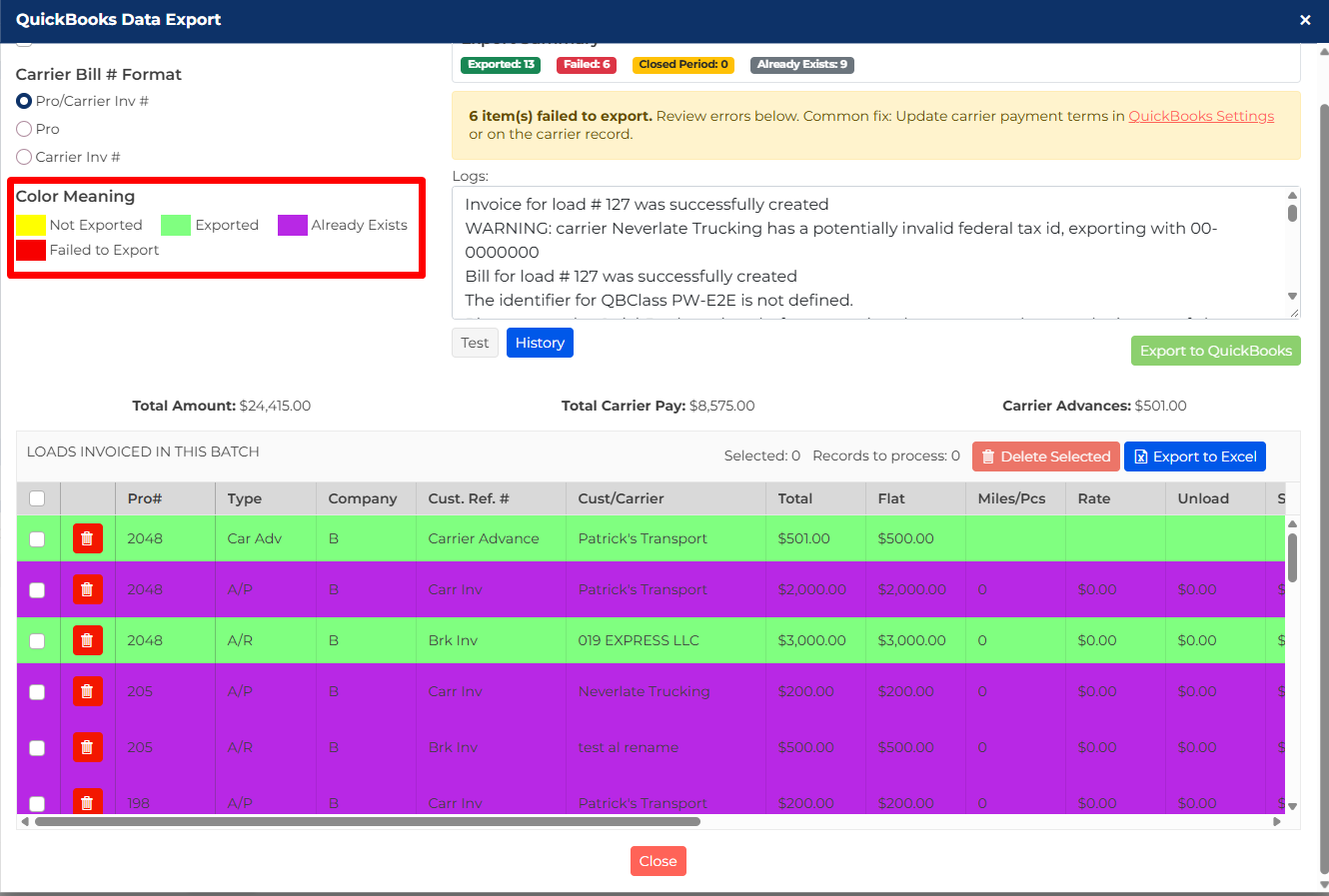
The QuickBooks Export window is where queued invoice, bill, and carrier advance rows are sent to QBO.
Common controls:
- Check if Invoice Already Exists: checks QBO before creating a duplicate invoice or bill.
- Send invoices marked 'To Be Printed': marks exported QBO invoices for printing.
- Carrier Bill # Format: Brokerage only; choose Pro/Carrier Inv #, Pro, or Carrier Inv #.
- Delete Selected: removes selected rows from the DrDispatch export queue before export starts.
- Export to Excel: exports the queue grid for review.
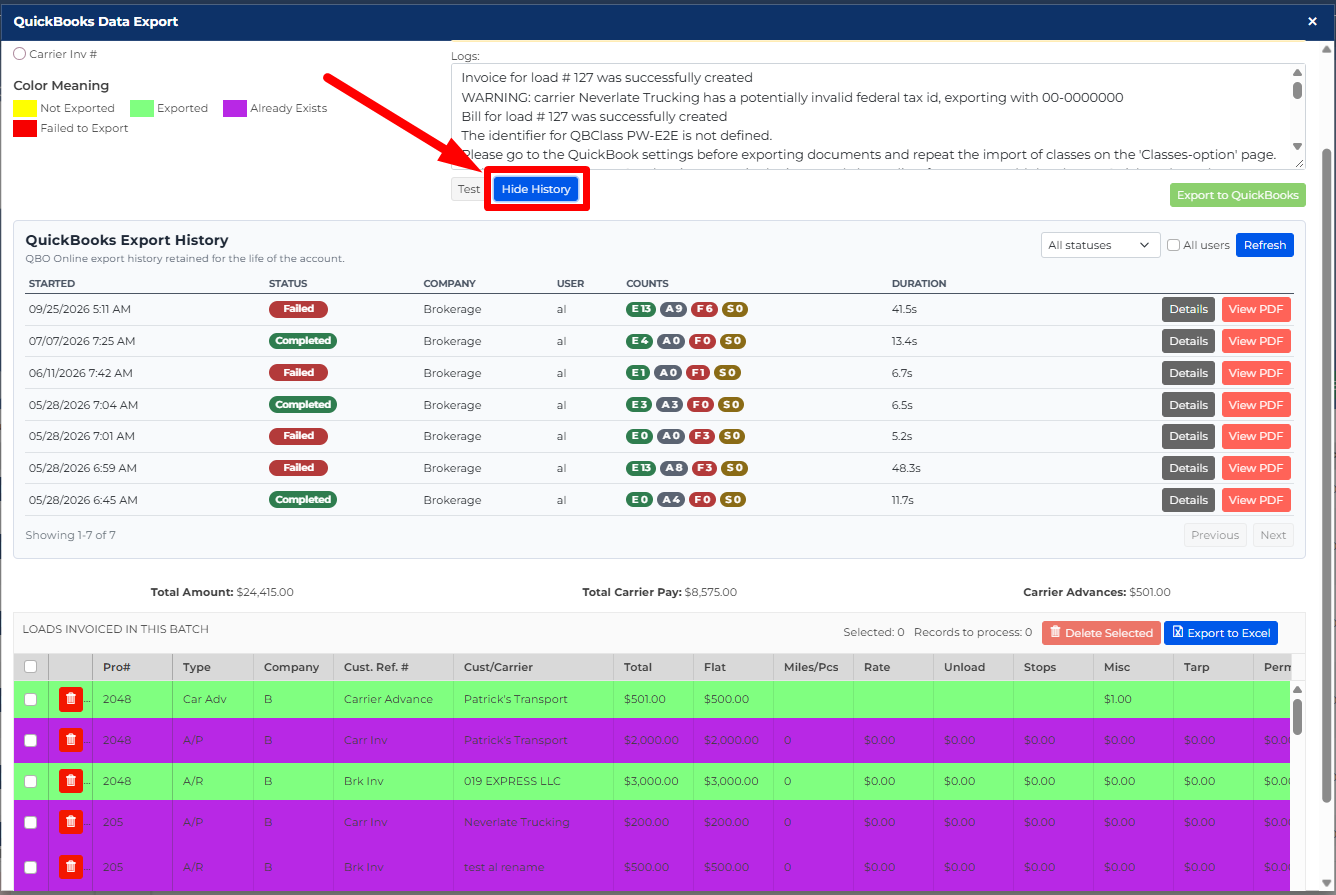
- History: shows recent QBO export batches.
- Export to QuickBooks: starts the export.
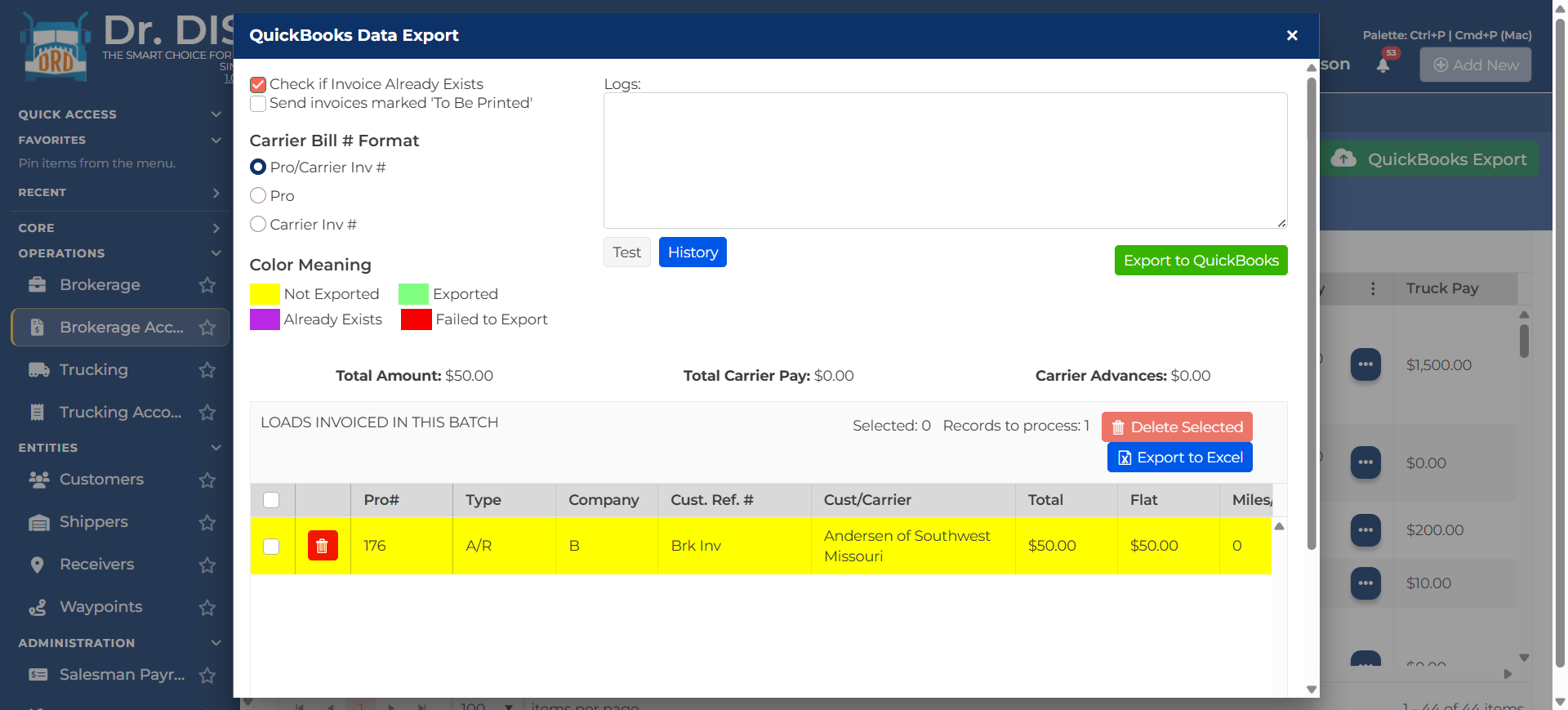
Export Statuses and History
The export window color legend means:
| Status | Meaning |
|---|---|
| Not Exported | The row is queued in DrDispatch but has not been exported yet. |
| Exported | QBO accepted the row. |
| Already Exists | QBO already had a matching invoice, bill, or settlement item. |
| Failed to Export | QBO rejected the row or DrDispatch could not complete the export. |
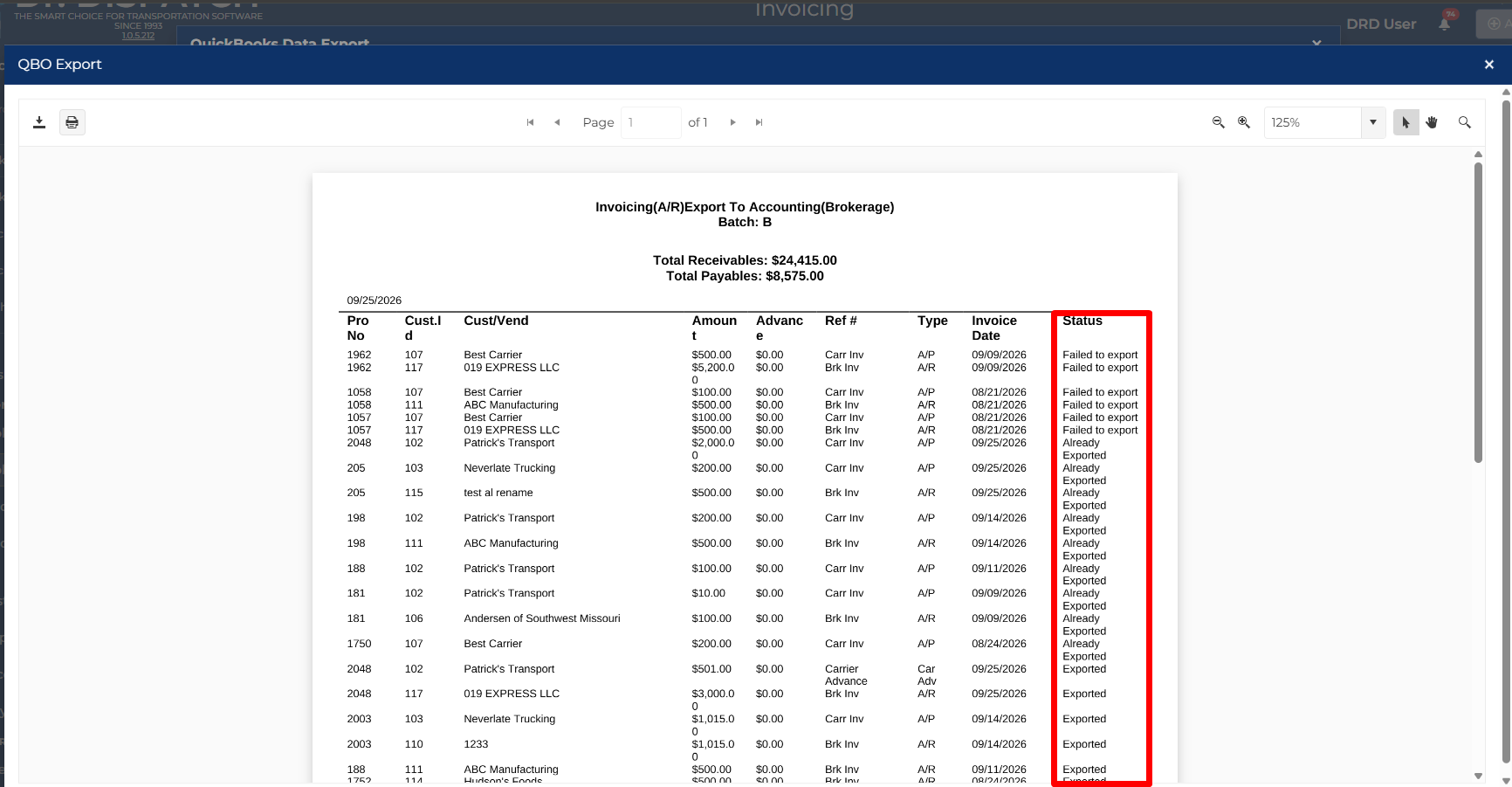
Use History to review recent QBO export batches. The details view shows Pro #, transaction type, status, QBO document information, and error messages. If a report is available, use View Report for a PDF summary.
Brokerage A/R Customer Payments
Use A/R - Accounts Receivable after customers pay invoices.
- Go to Brokerage Accounting > A/R - Accounts Receivable.
- Select one or more invoiced loads.
- Enter payment amount, check number, and post date.
- Select Post To QuickBooks if the payment should be created in QBO.
- Click Post Payment.
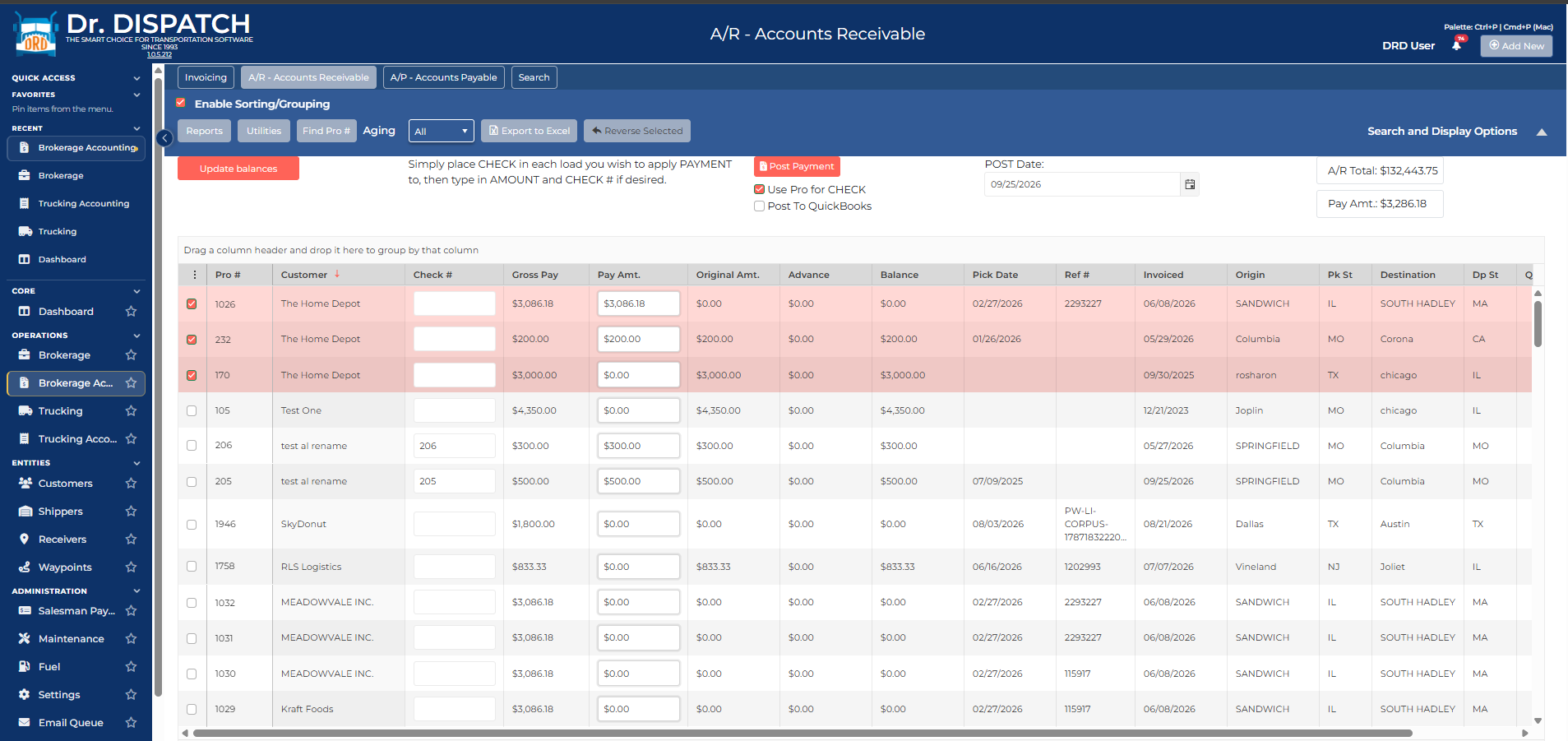
QBO payment posting uses the QBO customer invoice and payment method. DrDispatch expects a QBO payment method named Check when posting check payments.
If paid-status tools are enabled, use Update paid status or Update balances to refresh invoice status or balance information from QBO.
Brokerage A/P Carrier Bills and Payments
Brokerage A/P is used for carrier payables.
Typical QBO flow:
- Process the Brokerage customer invoice and queue carrier A/P rows when needed.
- Export the A/P rows from the QuickBooks Export window to create carrier/vendor bills in QBO.
- Use A/P payment tools to send carrier bill payment/check data to QBO when your workflow pays carriers from DrDispatch.
- Use paid-bill refresh tools when QBO is the source of truth for paid carrier bills.
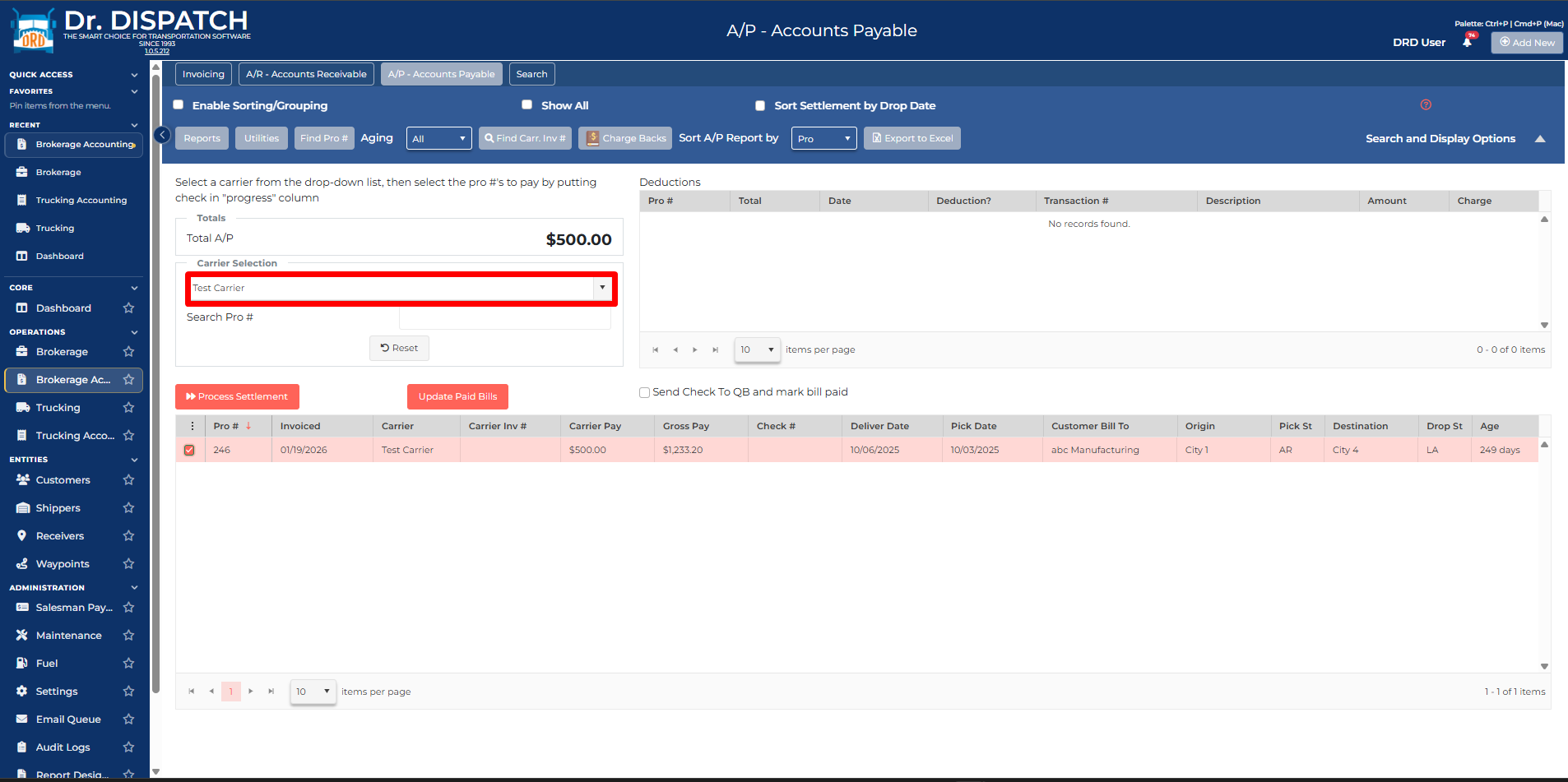
Carrier bills use the carrier/vendor record, carrier invoice/reference number, carrier rate lines, default or carrier-specific A/P terms, and Brokerage expense account mappings.
Carrier Advances Page
Carrier advances can also be exported from the dedicated accounting carrier advances page.
- Go to Charge Backs from the Brokerage accounting area.
- Review open carrier advances.
- Click Export Advances to QuickBooks.
- Confirm the export.
- The QuickBooks Export window opens with advance rows selected for processing.
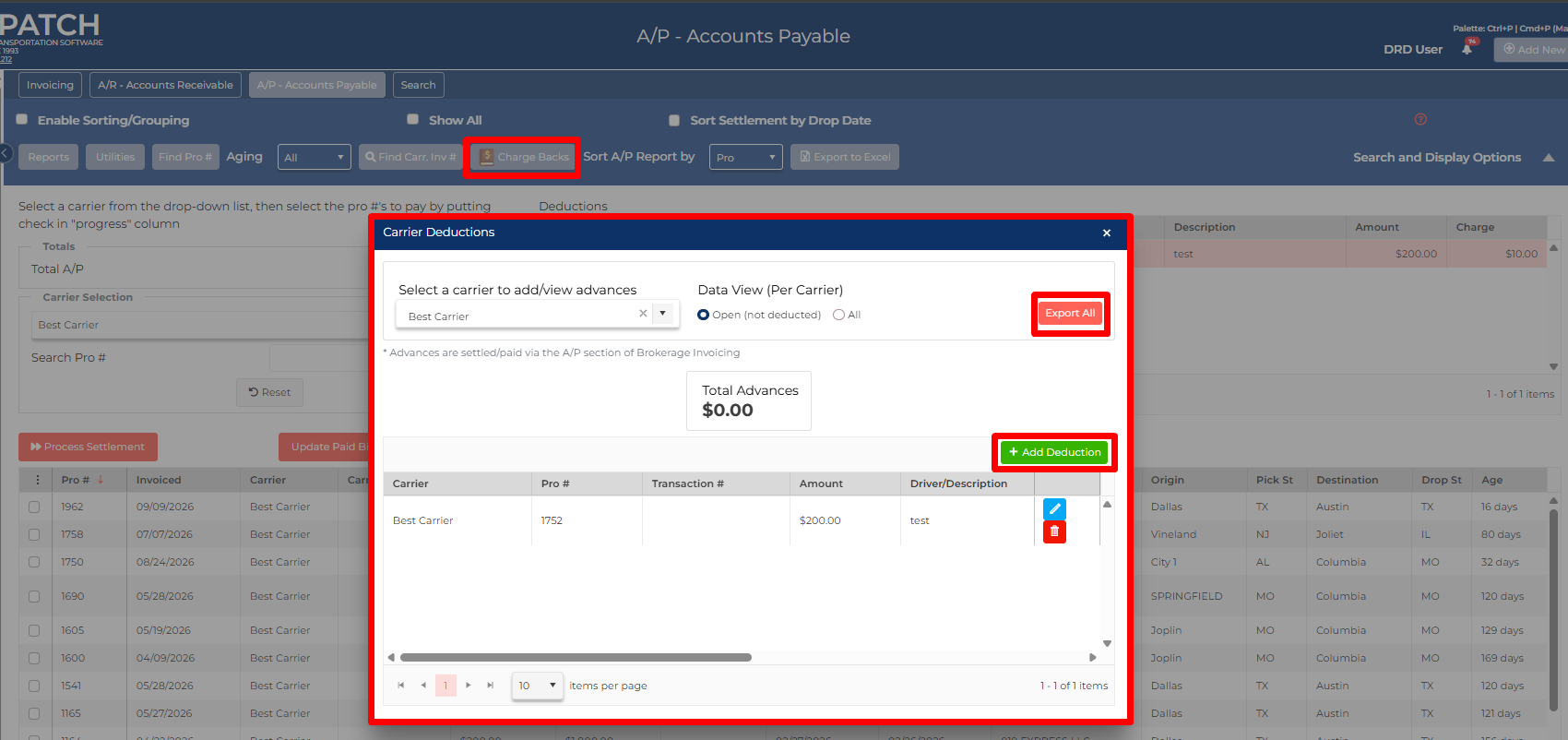
If there are no open advances, DrDispatch shows Nothing to export. Advances without a Pro # may be skipped because they cannot be tied to a load for export.
Trucking Invoicing and QBO
When QuickBooks Online is active, processing Trucking invoices creates QBO A/R export rows.
- Go to Trucking Accounting > Invoicing.
- Select the load or loads to invoice.
- Choose invoice options.
- Click Process Invoices.
- Use the QuickBooks Export window to send the invoice rows to QBO.
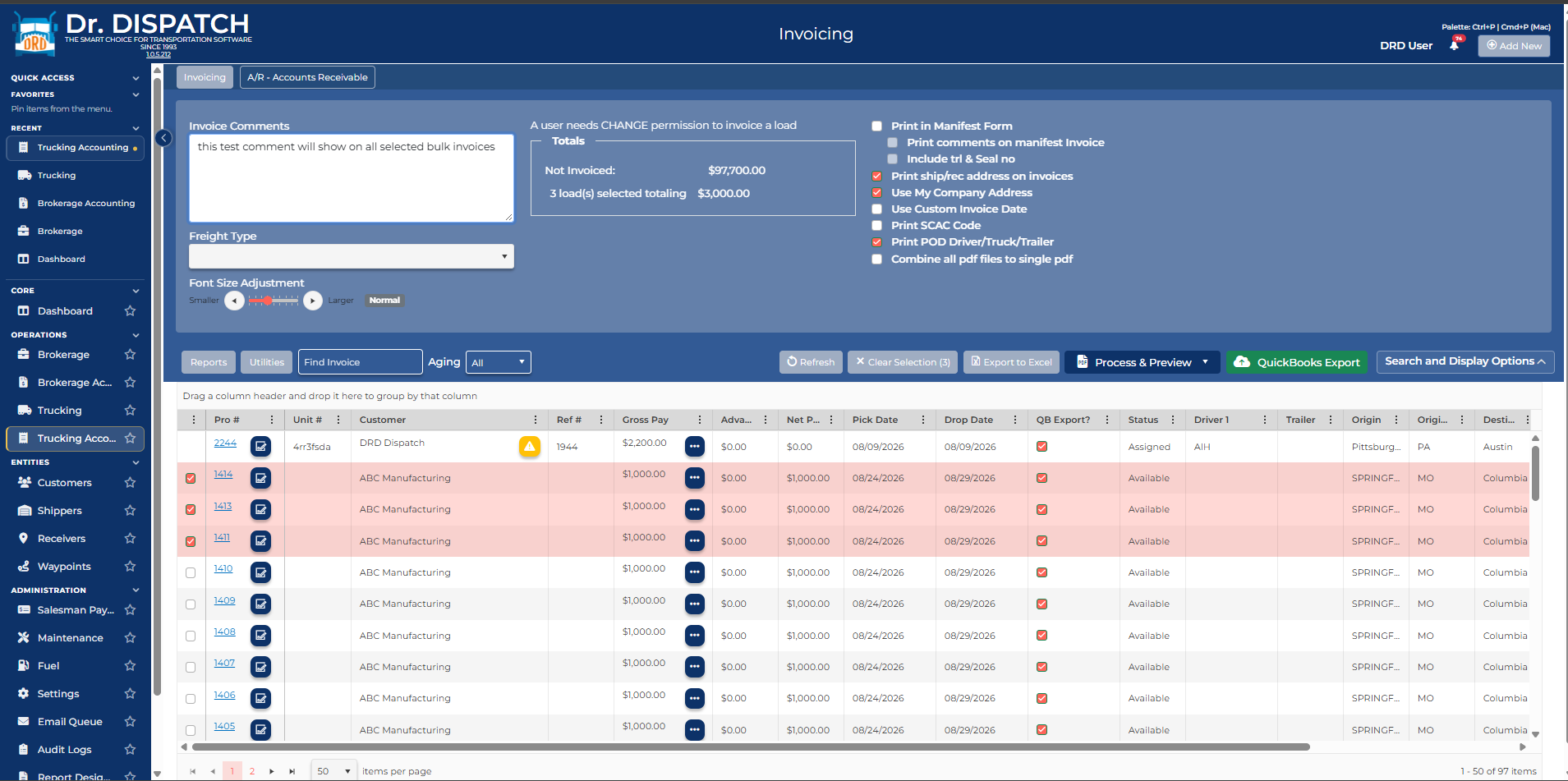
Trucking invoice exports use the Trucking line item mappings from QuickBooks Settings.
Trucking A/R Customer Payments
Use Trucking Accounting > A/R - Accounts Receivable after customers pay trucking invoices.
- Select one or more invoiced loads.
- Click Enter Payments button
- Enter payment amount, check number, and post date.
- Select Post To QuickBooks if the payment should be created in QBO.
- Click Post Payment.
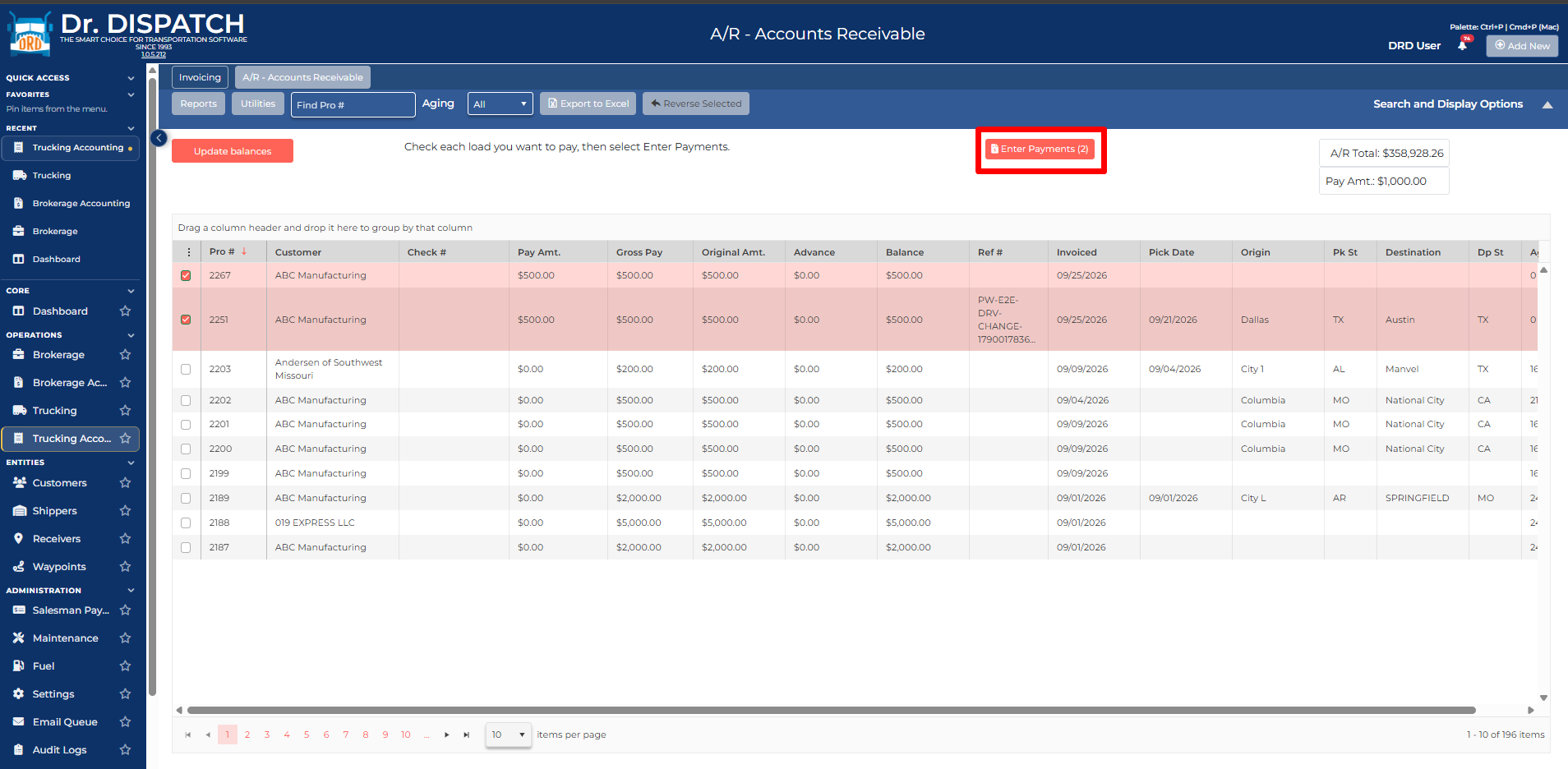
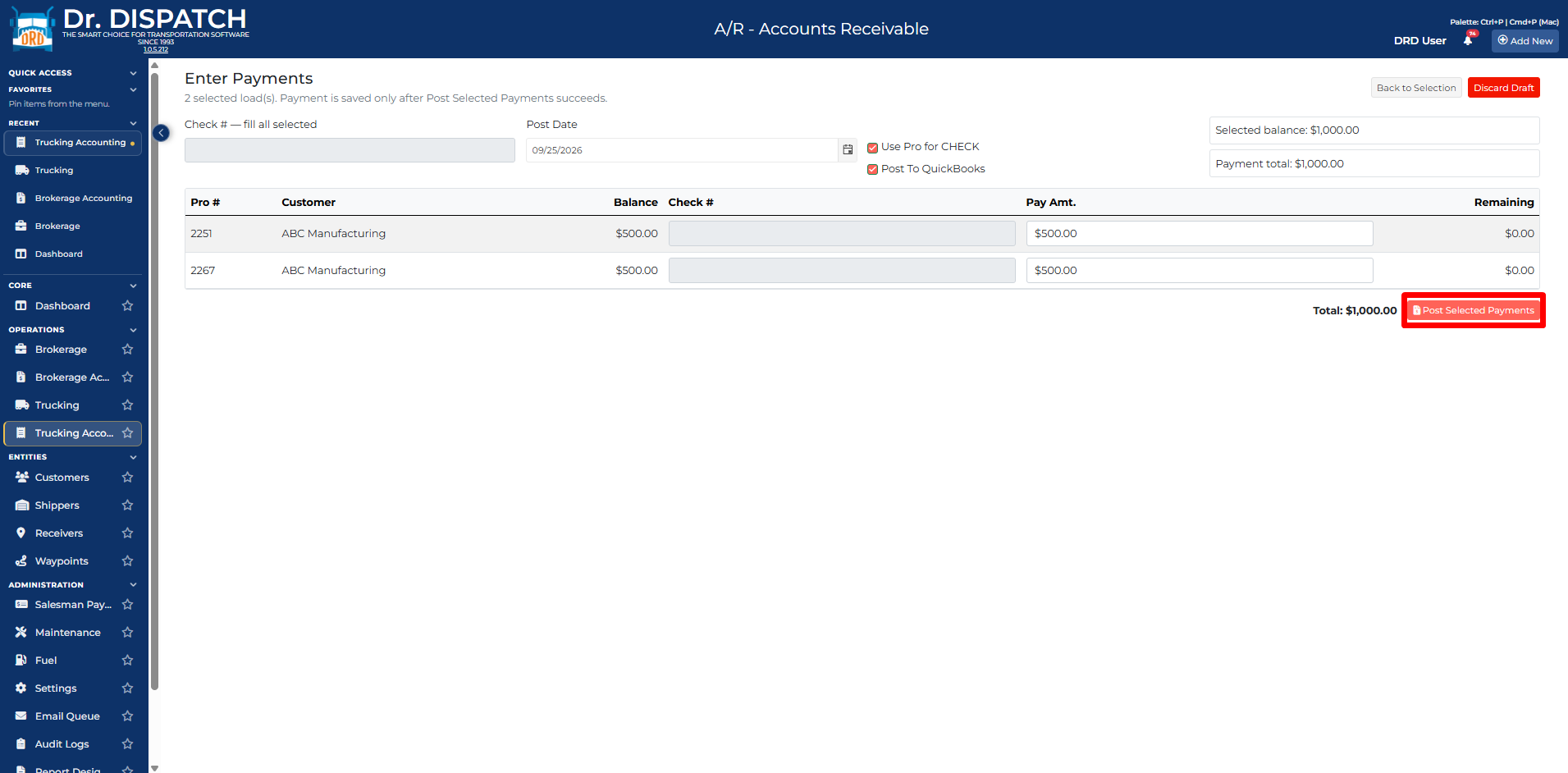
If paid-status tools are enabled, use Update paid status or Update balances to refresh payment or balance information from QBO.
Trucking Payroll Settlements and QBO
Trucking payroll has a separate QBO export flow for driver and fleet owner settlements.
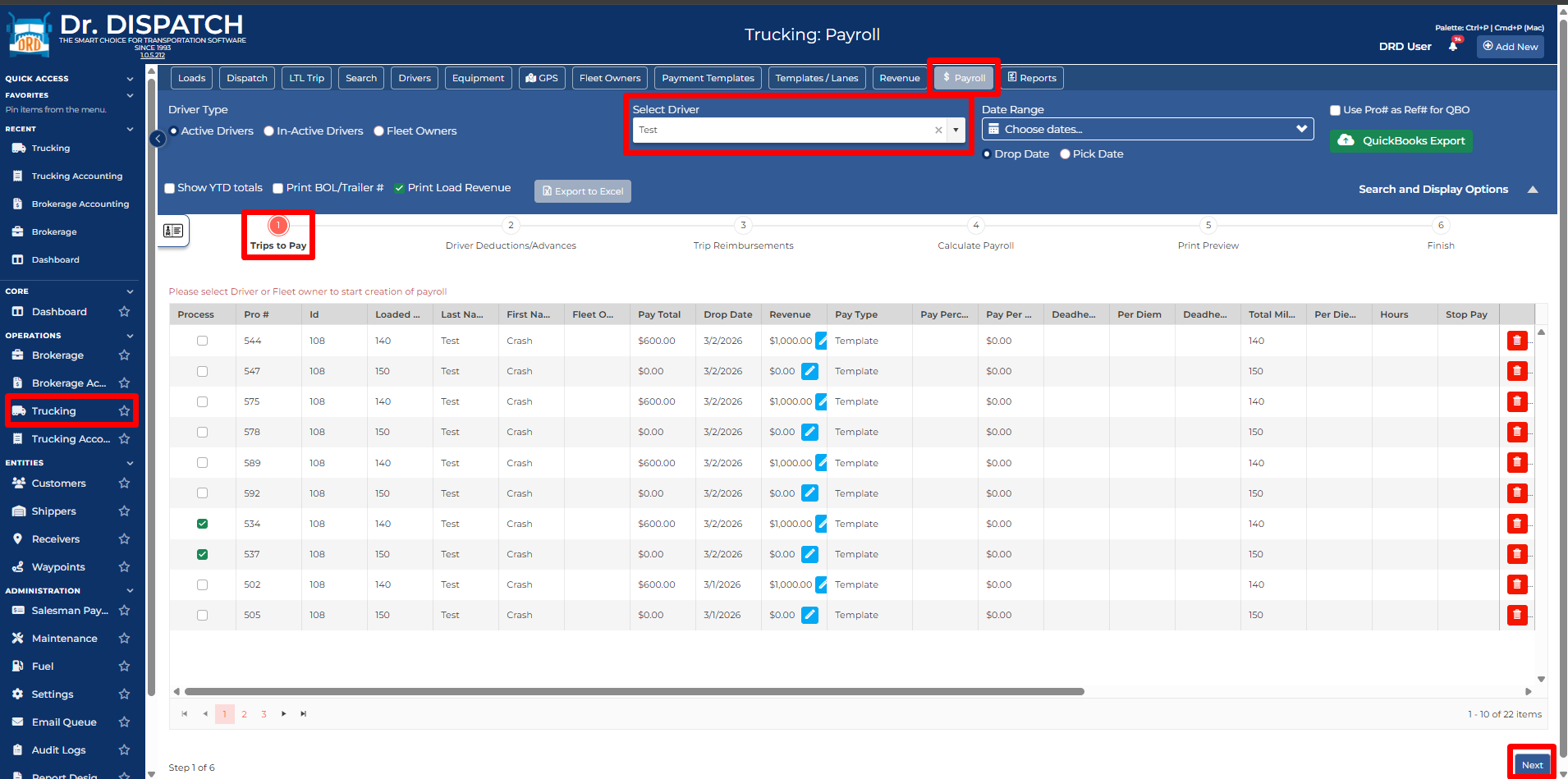
- Go to Trucking > Payroll.
- Select drivers or fleet owners.
- Review pending payments, advances, and expenses.
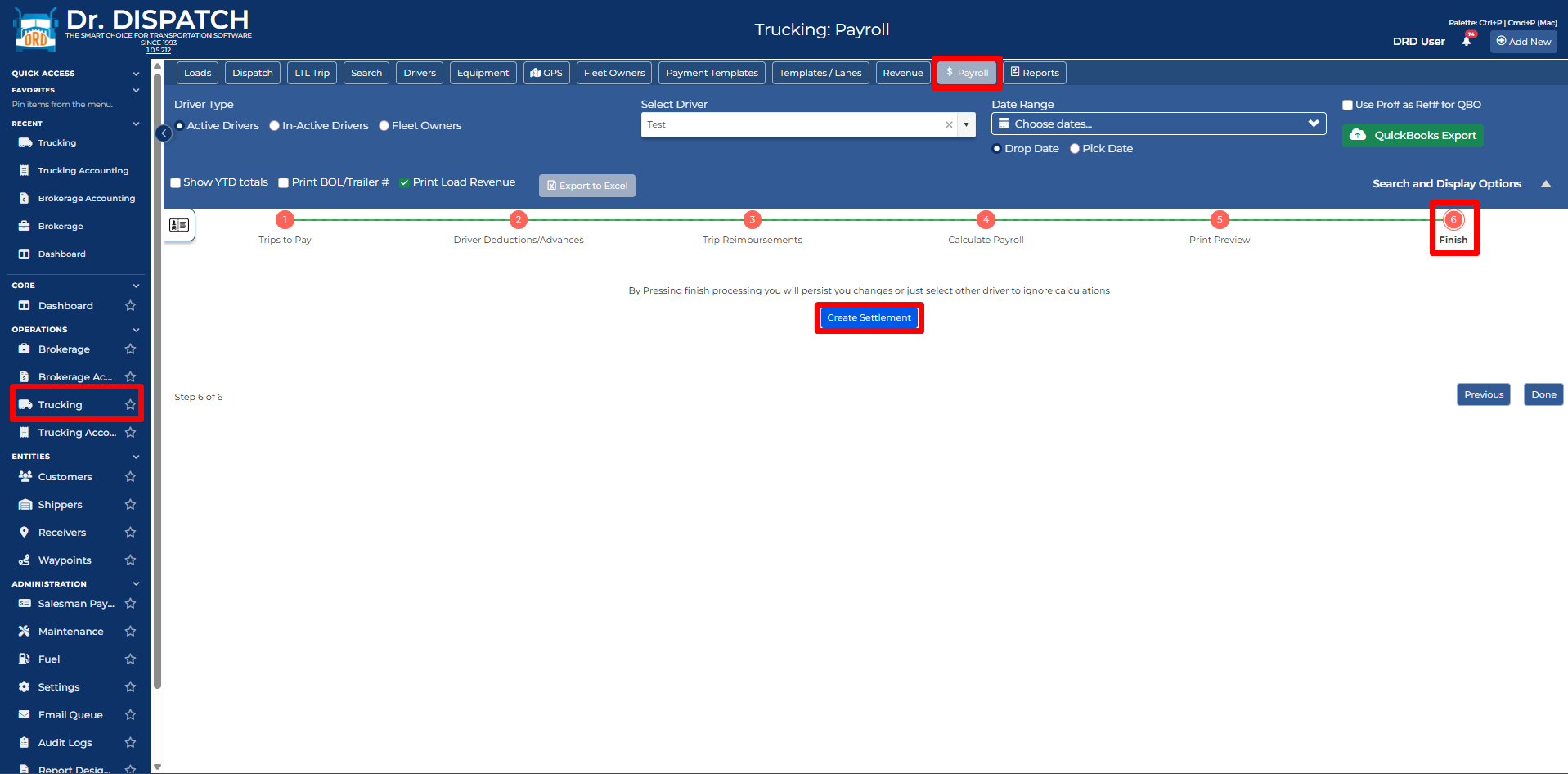
- Create the settlement.
- Open the Payroll export to QuickBooks window.
- Export the settlements to QBO.
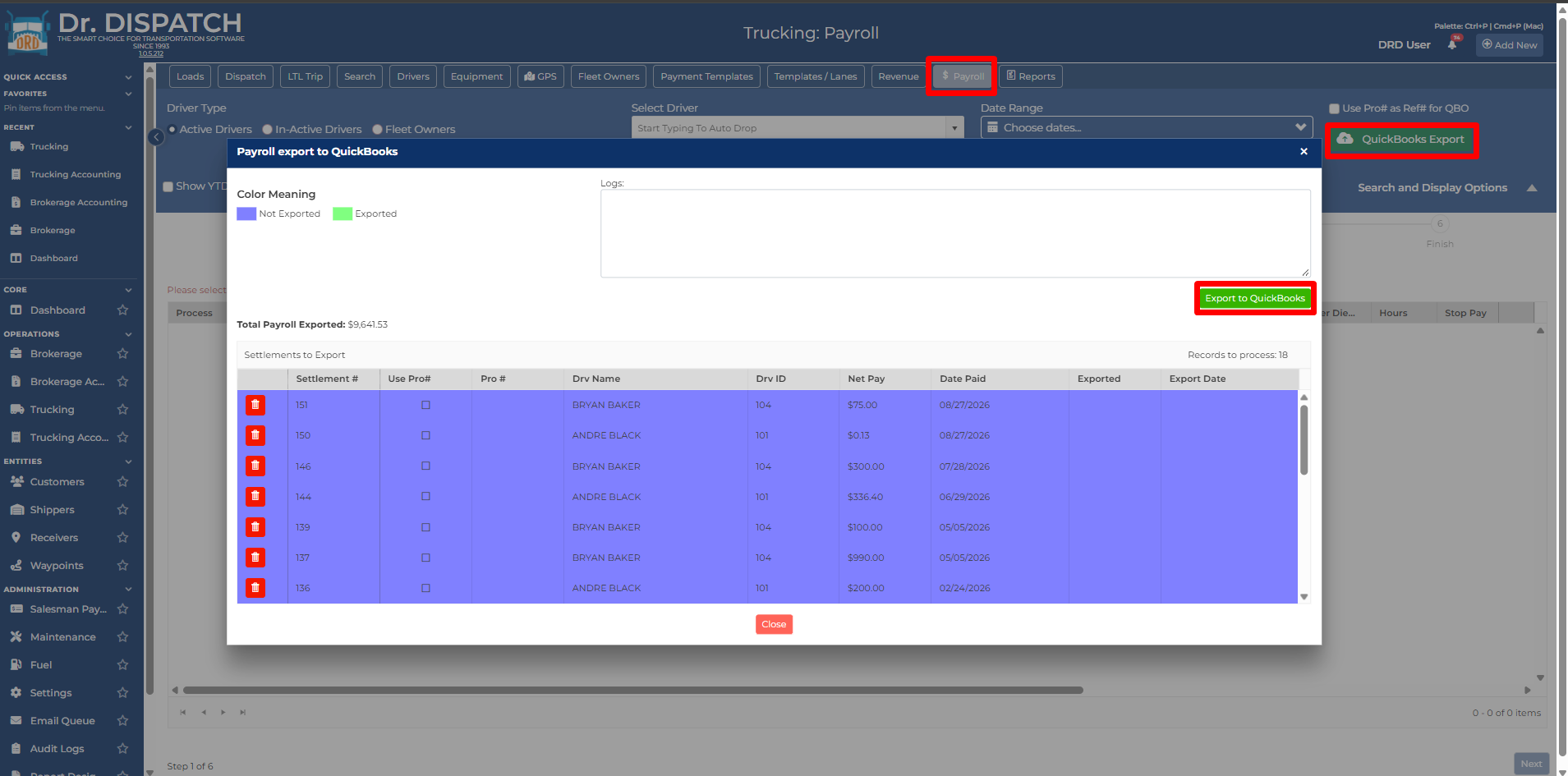
Settlement export behavior depends on the 1099 Payroll rules setting:
| Rule | QBO Result |
|---|---|
| Do NOT send 1099 Payroll | No settlement export is sent to QBO. |
| Add Driver pay as a CHECK | QBO check is created for the settlement. |
| Add Driver pay as a BILL | QBO bill is created for the settlement, then a bill payment is created. |
If Use Pro# as Ref# for QBO is selected in Payroll, the settlement export uses the Pro # as the QBO reference where supported.
Common QBO Export Errors
Reconnect Required
If QBO authorization expires, DrDispatch prompts the user to reconnect. Reconnect to QuickBooks Online and retry or resume the export.
Already Exists
This means QBO already has a matching invoice, bill, or settlement item. Review the QBO document before retrying. If the existing QBO document is correct, no new export is needed.
Closed Accounting Period
QBO rejected the export because the accounting period is closed. Reopen the period in QBO or make the adjustment directly in QBO, then retry if needed.
Missing or Inactive QBO Reference
QBO rejected an account, customer, vendor, item, employee, or other reference. Confirm the mapped account/item is active in QBO, then refresh mappings in DrDispatch.
Item Is a Category
QBO invoice export needs a product/service item. If the mapped item is a category, fix it in QBO under Products & Services and refresh the mapping in DrDispatch.
Payment Method Check Is Missing
Payment posting expects a QBO payment method named Check. Add or activate that payment method in QBO.
Invalid Terms
The term on the customer, carrier, or default QBO settings does not exist in QBO. Copy terms again from QuickBooks Settings and select valid defaults.
Missing Class Mapping
If Use Classes is enabled, each exported load class must exist in the copied QBO class list. Add the missing class in QBO or update the load class in DrDispatch, then copy classes again.
Suggested Video Segments
- Process a Brokerage invoice and open the QuickBooks Export window.
- Export Brokerage A/R and A/P rows to QBO.
- Post a customer payment to QBO from A/R.
- Export carrier advances to QBO.
- Process a Trucking invoice and export it to QBO.
- Create a Trucking settlement and export payroll to QBO.
- Use export history and details to troubleshoot failed QBO exports.